

💻 Aider: An Open-Source AI Coding Assistant for Developers
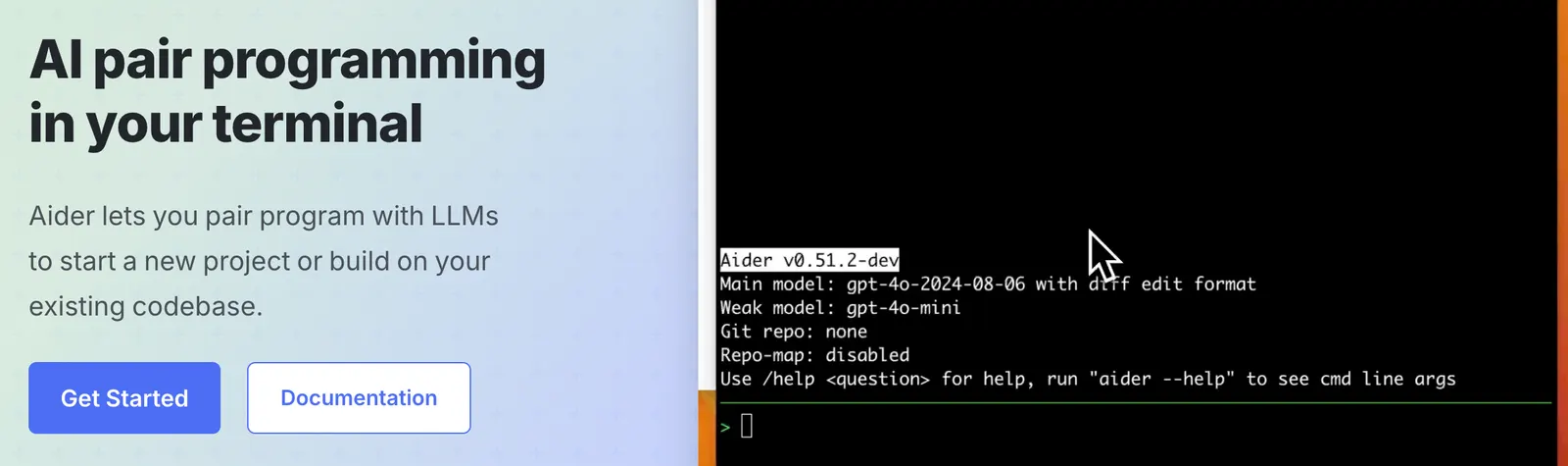
Aider is an open-source AI coding assistant designed to work directly with your local Git repository. Instead of copying code into an AI chatbot and manually pasting the result back into your project, Aider can inspect your codebase, modify files, run tests, review changes, and work with Git from the terminal.
That makes Aider particularly interesting for developers who already use Git and command-line tools. It is less of a visual AI code editor and more of an AI pair programmer that fits into an existing software development workflow.
🔎 What Is Aider?
Aider is an open-source AI pair-programming tool for the terminal. The project is developed under the Aider-AI organization and is closely associated with developer Paul Gauthier.
The project became publicly visible in 2023, during the early wave of GPT-3.5 and GPT-4-based coding assistants. From the beginning, its focus was different from simple code-generation chatbots: Aider was designed to let an AI model make changes directly inside a real software repository.
The basic problem it solves is simple: developers often need more than a code snippet. A real feature can involve several files, tests, configuration, dependencies, and existing application logic. Aider is designed to work with that context rather than treating every coding question as an isolated prompt.
Aider itself does not provide a proprietary AI model. Instead, it connects to different large language models from providers such as OpenAI, Anthropic, Google, DeepSeek, OpenRouter, and others. Local models can also be used with suitable configurations.
🧰 Core Features
1. AI Pair Programming
Aider lets developers describe coding tasks in natural language and have the AI modify the actual project files. This eliminates much of the manual copy-and-paste work associated with ordinary AI chat tools.
2. Repository Map
Aider can build a map of the repository containing information about files, classes, functions, and other code structures. This gives the AI a broader understanding of an existing project while avoiding the need to place the entire codebase into every prompt.
3. Multi-File Editing
Aider can coordinate changes across multiple files. For example, adding a new feature might require changes to a backend route, database layer, frontend component, configuration, and tests. Aider can handle these related changes within the same session.
4. Git Integration
Git is a central part of the Aider workflow. The tool can create commits describing the changes it makes, while developers can inspect diffs, revert work, or use Aider's undo functionality when an AI-generated change is not useful.
5. Automated Testing and Linting
Aider can run tests and linting commands after making changes. If a test fails, you can provide the error output to the AI and ask it to investigate and make another correction.
6. Multiple AI Model Providers
One of Aider's defining features is model flexibility. Developers can choose different LLM providers depending on price, coding ability, speed, privacy requirements, or availability. This prevents the coding workflow from being permanently tied to a single AI company.
7. Image and Web Context
Aider can use additional context such as images and web pages. A screenshot can be useful when explaining a UI problem, while documentation or a technical webpage can provide information needed for an implementation.
8. Voice Coding
Aider also supports voice-based interaction, allowing developers to describe coding tasks verbally. This can be convenient for brainstorming or explaining a larger task before reviewing the resulting changes.
⭐ What Makes Aider Different?
Aider's biggest difference is its relationship with the developer's existing workflow. It does not try to replace Git, your editor, your terminal, or your test environment. Instead, it works alongside them.
- Open-source: Aider is available as open-source software rather than a closed AI editor.
- Model independent: You can choose which AI model powers the coding workflow.
- Git-aware: Code changes can be reviewed and managed using familiar Git operations.
- Designed for real repositories: Repository mapping and multi-file editing make it more useful for existing applications.
- Terminal-first: Developers who already work heavily from the command line can integrate it without changing their development environment.
The trade-off is that Aider expects more from the user. You need to understand basic Git, terminals, model APIs, and your own project structure. For experienced developers, that can be a benefit. For beginners, it can make the first setup less straightforward than a commercial AI editor.
🎯 Real-World Use Cases
| Use Case | How Aider Helps |
|---|---|
| Feature Development | Implement new features across multiple files while keeping the existing project structure in context. |
| Bug Fixing | Analyze error messages, inspect relevant source files, and make targeted corrections. |
| Refactoring | Clean up duplicated or outdated code across several related files. |
| Testing | Create tests, run existing tests, investigate failures, and update implementations. |
| Documentation | Write or update README files, comments, API documentation, and technical explanations. |
| Frontend Development | Modify HTML, CSS, JavaScript, TypeScript, React, Vue, and other frontend code. |
| Backend Development | Work with Python, JavaScript, PHP, Go, Java, Rust, C++, and many other programming languages. |
| Learning Programming | Explain unfamiliar projects and demonstrate how changes affect different parts of an application. |
Aider is primarily a programming tool. It is not intended to replace general-purpose AI tools for writing, marketing, graphic design, or office work.
🚀 How to Use Aider
Step 1: Install Aider
Aider can be installed through its installation tool. A typical installation looks like this:
python -m pip install aider-install
aider-install
After installation, verify that Aider is available from your terminal.
Step 2: Open Your Git Repository
Move into the project you want the AI to work on:
cd /path/to/your/projectAider works particularly well when the project is already managed with Git. Before asking the AI to make substantial changes, it is a good idea to commit your current work.
Step 3: Configure an AI Model
Choose an AI model and configure the corresponding API key. Aider supports a wide range of providers, so the exact command depends on the model you choose.
aider --model <model-name>API credentials can be configured through environment variables or Aider's configuration mechanisms.
Step 4: Start Aider With Relevant Files
aider app.py routes.py tests/test_app.pyYou can also add files from inside an active Aider session. Avoid adding the entire project unless there is a good reason to do so. Keeping the active file set focused generally makes the AI's job easier.
Step 5: Describe the Task
Add email/password authentication to this Flask application.
Use the existing database layer.
Prevent duplicate email registration.
Add tests for registration and login.
Do not change the existing API response format.
Aider will analyze the relevant project context and propose changes to the files.
Step 6: Review the Changes
Review the generated diff before treating the changes as finished. Look for unnecessary modifications, incorrect assumptions, security issues, and changes that conflict with your existing architecture.
Step 7: Run Tests
Run the relevant test suite. If something fails, give Aider the actual error message and ask it to investigate the failure rather than simply telling it that the code is wrong.
Step 8: Commit the Result
Once the changes have been reviewed and tested, commit them to Git. If the implementation goes in the wrong direction, Git history and Aider's undo capabilities make it easier to return to an earlier state.
💡 Tips for Getting Better Results
1. Be Specific About the Desired Change
Instead of saying “fix my authentication,” explain the exact behavior you expect, the files or systems involved, and what must remain unchanged.
2. State Your Constraints
AI coding assistants often make unnecessary changes when requirements are vague. Include constraints such as:
Keep the current API unchanged.
Do not introduce a new framework.
Reuse the existing database abstraction.
Only modify the authentication module and related tests.
3. Add Relevant Files
Do not assume that giving the AI access to every file will automatically produce better results. Start with the files that directly relate to the task and allow the repository map to provide broader structural context.
4. Give It Real Error Messages
A compiler error, stack trace, failing test, or exact runtime message gives the model something concrete to reason about. This is generally more useful than saying “it doesn't work.”
5. Use a Strong Model for Complex Changes
Because Aider supports multiple models, you can use different models for different tasks. A cheaper model may be sufficient for documentation or simple edits, while a stronger reasoning model can be more appropriate for complicated debugging or architectural work.
6. Commit Before Large Changes
Always create a clean Git checkpoint before asking Aider to perform a major refactor. It gives you a safe way to compare or revert the result.
7. Review Security-Sensitive Code Yourself
Authentication, payments, authorization, database migrations, file operations, shell commands, and secret management should receive human review even when the generated code passes tests.
💻 Installation and Platform Availability
| Platform | Availability | Details |
|---|---|---|
| Web | Not the primary experience | Aider is mainly designed for terminal-based development. |
| Windows | Yes | Can be installed through the Aider installation workflow. |
| macOS | Yes | Works from the terminal and alongside common development tools. |
| Linux | Yes | Well suited to command-line development environments. |
| iPhone / iPad | No dedicated main app | Aider is designed primarily for desktop development environments. |
| Android | No dedicated main app | Not designed as a mobile coding application. |
| VS Code / JetBrains | Works alongside IDEs | Aider can be used from the terminal while you continue working in your preferred editor. |
| Browser Extension | No primary extension | Web content can be provided as context without relying on a traditional browser extension. |
The important point is that Aider is terminal-first rather than browser-first. Developers who spend most of their day inside VS Code or JetBrains can still use it, but the main interaction happens through the command line.
💰 Aider Pricing
Aider's pricing is different from products such as Cursor or GitHub Copilot. The Aider software itself is free and open source. There is no standard Aider Pro subscription that you have to purchase to unlock the basic coding assistant.
| Cost | Price | What It Covers |
|---|---|---|
| Aider Software | $0 | The open-source Aider application. |
| Cloud AI Models | Varies by provider | API usage is normally billed separately by the selected AI provider. |
| Local Models | No API fee | You can use compatible local models, but your own computer provides the required hardware. |
| Aider Pro | No standard Pro plan | Aider does not use the conventional monthly Pro subscription model. |
| Enterprise | No standard enterprise subscription | Organizations can deploy the open-source software and select their own model and infrastructure. |
This means your actual monthly cost depends largely on the AI model you choose and how heavily you use it. Aider can therefore be very inexpensive for light usage, while a developer running large models against a large repository can spend considerably more on API calls.
There is an important distinction between consumer AI subscriptions and API billing. Having a subscription to an AI chatbot does not necessarily provide API credits that can be used with Aider. Check the billing rules of the specific model provider before configuring it.
👥 Who Should Use Aider?
- Software developers: Especially developers working on existing Git repositories.
- Open-source contributors: The open-source nature and Git-based workflow are a natural fit.
- Freelancers: Useful for moving quickly across multiple client projects.
- Engineering teams: Helpful for repetitive implementation, debugging, testing, and refactoring.
- Students: Useful for learning how AI can interact with a real software project.
- Technical founders: Can help turn product requirements into working code faster when the founder can review the implementation.
- AI developers: Useful for experimenting with different coding models and local LLMs.
Aider is less suitable for ordinary users who simply want to generate a small piece of code. It assumes that you have at least some understanding of the terminal, Git, files, and software projects.
🌎 Global Usage and Adoption
Aider does not publish an official global active-user number, download count, or detailed country-by-country user breakdown. As a result, exact claims about the number of people using Aider worldwide should be treated carefully.
GitHub provides a useful public indication of developer interest. The Aider repository has accumulated tens of thousands of stars and thousands of forks, with developers contributing through issues, pull requests, discussions, and code changes.
However, GitHub stars are not equivalent to active users. A developer may star a project without installing it, while another developer may use Aider regularly without interacting with the repository.
Aider's international adoption is also difficult to measure precisely. There is no reliable public source showing an exact ranking of Aider users by country. Its support for major programming languages, cloud AI providers, local models, Windows, macOS, and Linux makes it relevant to developers across North America, Europe, Asia, and other software-development markets.
⚖️ Pros and Cons
Pros
- Free and open source: You do not need an Aider subscription to use the software.
- Flexible model selection: Developers can choose different cloud or local AI models.
- Strong Git workflow: Changes can be reviewed, committed, and reverted using familiar development tools.
- Good for real codebases: Repository mapping and multi-file editing make it useful beyond simple code snippets.
- Fits existing developer workflows: It works naturally with terminals, Git, editors, and testing tools.
Cons
- Setup is not beginner-friendly: API keys, model configuration, Python, terminals, and Git can create a learning curve.
- No single subscription covers the AI model: Cloud model usage is generally billed separately.
- Terminal-focused interface: Developers who prefer a visual AI editor may find it less comfortable than newer AI-native IDEs.
- Results depend heavily on the selected model: Aider provides the coding workflow, but the underlying LLM still determines much of the reasoning and code quality.
🥊 Aider vs. Similar AI Coding Tools
| Tool | Interface | Pricing Approach | Main Strength | Best Fit |
|---|---|---|---|---|
| Aider | Terminal | Free software + model costs | Open-source, Git-aware, multi-file AI coding | Developers who want control and model flexibility |
| Cursor | AI-native editor | Subscription plans | Deep AI integration into the code editor | Developers who want an integrated visual workflow |
| GitHub Copilot | IDE and GitHub | Subscription plans | Code completion and integrated coding assistance | Developers looking for a mainstream coding assistant |
| Claude Code | Terminal | Subscription and/or API usage | Agent-style terminal coding | Developers who prefer command-line AI agents |
| Continue | IDE extensions | Open-source and model-provider dependent | Configurable AI assistance inside development environments | Developers who want flexible IDE integration |
The main difference is workflow rather than simply the number of AI features. Cursor and GitHub Copilot emphasize convenience and tight editor integration. Aider emphasizes openness, terminal workflows, Git, and model choice.
If you want to install one application, sign in, and immediately start coding with a polished interface, an AI-native editor may be easier. If you already have a terminal-based workflow and want to decide which model processes your code, Aider is a much more natural fit.
🧪 A Practical Workflow for a Real Project
A sensible Aider workflow for an existing application looks like this:
- Commit your current project to Git.
- Open the repository in your terminal.
- Start Aider with the AI model you want to use.
- Add only the files relevant to the task.
- Describe the desired behavior and technical constraints.
- Allow Aider to modify the code.
- Review the Git diff carefully.
- Run unit tests and integration tests.
- Give Aider the actual error output if tests fail.
- Review the final implementation and commit it.
This workflow is more reliable than simply asking an AI to “build the feature.” The AI makes the implementation faster, while Git, tests, and human review provide the safety net.
🔐 Security and Code Review
Because Aider can modify project files and interact with development commands, it should be treated as a development tool with real access to your codebase, not simply as a chatbot.
Review AI-generated changes carefully when they involve authentication, authorization, payment systems, database migrations, shell commands, file permissions, secrets, third-party dependencies, or security-sensitive configuration.
Your choice of model provider also matters. Aider is the interface and coding workflow, while the selected cloud model provider may receive the code context required to process your request. Organizations working with confidential source code should review the provider's data retention, privacy, and security policies before using a cloud model.
🏁 Final Verdict: Is Aider Worth Using?
Aider is worth trying if you are already comfortable with Git and the terminal. Its biggest strength is not simply AI code generation. The useful combination is repository awareness, multi-file editing, Git integration, testing, and the ability to choose your own AI model.
For an experienced developer, that can be a very practical setup. You are not forced to move your project into a proprietary editor, and you are not permanently tied to one AI model or vendor.
Best suited for: professional developers, open-source contributors, freelancers, technical founders, engineering teams, and students who are comfortable learning command-line development.
Worth using when: you work with existing Git repositories, frequently make changes across multiple files, want to automate repetitive coding tasks, or want to experiment with different AI models.
Not recommended when: you want a completely visual experience, do not understand Git or terminal workflows, or simply need occasional code snippets without modifying a real project.
Aider is not the easiest AI coding assistant to start with, and that is worth saying clearly. Its appeal is control rather than simplicity. For developers who want an open-source, model-flexible coding assistant that works alongside their existing Git workflow, that trade-off can make a lot of sense.
Comments