
🧹 Cleanup.pictures: AI Photo Cleanup and Object Removal Without Photoshop
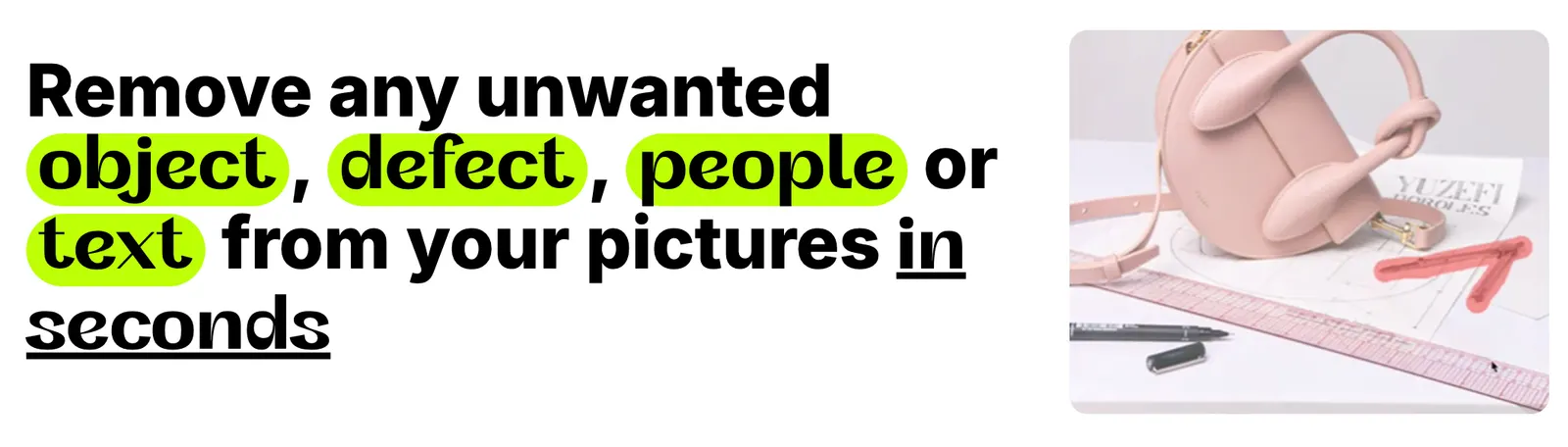
Cleanup.pictures is an AI-powered image editing tool built around one very practical job: removing unwanted things from photos. Instead of opening Photoshop, creating a selection, finding the right retouching tool, and manually rebuilding the background, you upload an image, brush over the object you want to remove, and let the AI reconstruct the missing area.
That simplicity is the main reason people use it. Cleanup.pictures is not trying to replace Photoshop, Canva, or a full AI image-generation platform. It focuses on a specific problem: getting rid of people, objects, text, blemishes, cables, signs, and other visual distractions as quickly as possible.
For photographers, real estate agents, e-commerce sellers, designers, marketers, and everyday users who occasionally need a clean photo, the browser-based workflow can save a surprising amount of time.
🏢 What Is Cleanup.pictures?
Cleanup.pictures is an AI-powered photo retouching and object-removal tool based on image inpainting. The basic idea is simple: select an unwanted area, and the AI generates replacement pixels that fit the surrounding image.
The technology originally came from Init ML, the French AI company behind Clipdrop. Init ML was founded in 2020 and became known for building practical AI-powered image tools. Cleanup.pictures was launched publicly in 2021 and quickly became one of the more recognizable browser-based AI object-removal tools.
The product's positioning has remained relatively focused. Rather than becoming another huge all-in-one creative suite, Cleanup.pictures concentrates on removing unwanted elements from existing images.
Its main problem is straightforward: how can someone remove an unwanted element from a photograph without having professional photo-editing skills?
You can use it to remove people in the background, power lines, signs, objects on a table, blemishes, text, date stamps, and other distractions. It can also be useful for basic product-photo cleanup and real-estate photography.
✨ What Makes Cleanup.pictures Different?
The biggest difference is that Cleanup.pictures is deliberately narrow in scope. Many modern AI image editors keep adding features such as text-to-image generation, background replacement, image expansion, AI relighting, upscaling, templates, and design tools.
Cleanup.pictures takes almost the opposite approach. Open the editor, upload the image, paint over the unwanted area, and download the result.
That matters when you only need one specific edit. You don't have to learn layers, masks, clone stamps, complex selections, or a large professional editing interface.
The underlying technology is also different from traditional clone tools. Instead of simply copying pixels from another part of the image, AI inpainting attempts to understand the surrounding scene and generate a visually plausible replacement.
It is not perfect. Complicated textures, large objects, faces, repeating patterns, architectural details, and heavily obstructed backgrounds can still produce artifacts. But for straightforward cleanup jobs, the speed is the real advantage.
🛠️ Core Features
1. AI Object Removal
Paint over an unwanted object and let the AI reconstruct the area underneath it. This is the central feature of Cleanup.pictures and the main reason most people visit the service.
2. People Removal
Remove tourists, strangers, pedestrians, photographers, or other people appearing in the background of a photograph. It is particularly useful for travel photography, event photos, and real-estate images.
3. Text and Logo Removal
You can select unwanted text, labels, signs, date stamps, and similar visual elements. Results depend on the background, so complicated text over detailed textures may still require another editing tool.
4. Blemish and Photo Retouching
Cleanup.pictures can handle smaller imperfections such as spots, minor scratches, distracting marks, and other unwanted details in portraits or scanned photographs.
5. Product Photo Cleanup
E-commerce sellers can use the tool to remove distracting objects, unwanted props, small marks, or background elements from product photography.
6. Real Estate Photo Cleanup
Real-estate professionals can use it to remove small distractions from property photos, such as cables, bins, personal objects, or items that make a room look less clean.
7. High-Resolution Processing
The free version is designed for lower-resolution output, while the paid version provides high-resolution processing. This becomes more important when images are being used commercially or for print.
8. Developer API
Cleanup.pictures also provides an API for developers who want to integrate AI image inpainting into their own applications. This makes it possible to automate image-cleanup workflows instead of processing every photograph manually.
📸 Real-World Use Cases
Photography
This is probably the most obvious use case. A tourist is standing in front of a landmark, a timestamp is visible on an old photograph, or a random object ruins an otherwise good shot. Cleanup.pictures can handle these small corrections without requiring a full Photoshop workflow.
Real Estate
Real-estate agents frequently need clean interior photographs. A trash can, cable, small piece of furniture, personal item, or other distraction can sometimes be removed in seconds.
E-commerce
Online sellers can clean product photographs before using them on marketplaces, websites, social media, or advertising campaigns. It is especially useful when the original photograph is good but contains a few distracting elements.
Marketing and Social Media
Marketing teams often work under tight deadlines. If a campaign photo has one unwanted person or object in the background, opening a complicated editor just for that correction can be inefficient. Cleanup.pictures is better suited to these quick fixes.
Graphic Design
Designers can use Cleanup.pictures as a small utility inside a larger workflow. For example, clean a source photograph first and then move the result into Photoshop, Figma, Canva, or another design application.
Old Photo Restoration
Small cracks, marks, scratches, and unwanted elements can sometimes be removed from scanned family photographs. It is not a complete photo-restoration platform, but it can be useful for straightforward repairs.
Developers and SaaS Products
Developers can use the API when image cleanup needs to become part of another application. Potential applications include marketplaces, property platforms, photography services, catalog-management systems, and other products that process large numbers of images.
One important distinction: Cleanup.pictures is not primarily a writing, programming, or general-purpose AI assistant. Its value is almost entirely visual. Those other categories only become relevant when image cleanup is part of a larger workflow.
🚀 How to Use Cleanup.pictures
Step 1: Open the Web App
Open Cleanup.pictures in a modern browser. There is no complicated desktop installation process required.
Step 2: Upload an Image
Drag and drop a photograph into the editor or select an image from your device. For the best results, start with the highest-quality original available.
Step 3: Select the Unwanted Area
Use the brush to paint over the object, person, text, blemish, or other element you want to remove.
Step 4: Give the AI Enough Context
Don't try to create an extremely precise outline around the unwanted object. In many cases, slightly covering the object's edges and shadows gives the AI more information about what should disappear.
Step 5: Process the Image
Let the AI generate the replacement area. Most basic edits can be processed within seconds.
Step 6: Inspect the Result
Zoom in before downloading. Look for repeated patterns, strange edges, duplicated textures, distorted lines, or objects that appear to have been partially reconstructed.
Step 7: Try Again if Necessary
If the first result isn't convincing, adjust the brush area and process the image again. Changing the selected area can sometimes produce a noticeably better reconstruction.
Step 8: Download the Result
Once the image looks right, download it and use it in your project, website, store, presentation, or social media post.
💡 Tips for Getting Better Results
Cleanup.pictures doesn't work like ChatGPT, so there is no long prompt you need to write. The quality of the result depends much more on what you select than on how you describe it.
Use a Slightly Larger Brush Area
If you want to remove a person, don't only paint over the person's body. Include the shadow, nearby edges, and a small amount of surrounding space.
Remove Shadows Along With Objects
A common mistake is removing the object while leaving its shadow behind. The result can immediately look edited. Include the shadow when possible.
Work in Smaller Sections
If you are removing several unrelated objects, don't necessarily paint over everything at once. Processing one area at a time gives the AI a simpler reconstruction problem.
Be Careful With Straight Lines
Walls, windows, tiles, shelves, fences, and architectural lines can expose AI artifacts very quickly. Always inspect these areas after processing.
Use the Original Image
Avoid repeatedly compressing and re-uploading the same photograph. Start with the highest-quality original whenever possible.
Don't Expect Perfect Results From Large Removals
If you remove half of a complicated scene, the AI has much less visual information to work with. Cleanup.pictures performs best when the unwanted element is relatively small and the surrounding background provides enough context.
Check Your Rights Before Removing Watermarks
Only edit images you own or have permission to modify. Removing a copyright watermark from somebody else's image does not give you permission to use the image.
💻 Installation and Supported Platforms
Cleanup.pictures is primarily a web-based application, so most users do not need to install traditional desktop software.
- Web: Fully supported and the primary way to use Cleanup.pictures.
- Windows: Accessible through a modern web browser.
- Mac: Accessible through Safari, Chrome, Firefox, and other compatible browsers.
- iPhone and iPad: Can be accessed through a mobile browser.
- Android: Can be accessed through a mobile browser.
- Browser Extensions: The main Cleanup.pictures workflow is the web editor rather than a dedicated browser extension.
- API: Available for developers who want to integrate AI image cleanup into their own software.
For occasional photo cleanup, the web-first approach is convenient. There is no installer, no large application package, and no need to maintain another desktop editing program.
💰 Cleanup.pictures Pricing
Cleanup.pictures uses a freemium pricing model. The free version is useful for testing and casual editing, while the paid plan is aimed at users who need higher-resolution output.
Free — $0
- Unlimited image cleanup
- AI object removal
- Lower-resolution output
- Suitable for casual users and web content
Pro — Around $5/month
- Unlimited image processing
- High-resolution output
- Higher-quality processing
- Better suited to professional workflows
- Annual billing can reduce the effective monthly cost
ClipDrop Pro
Users who need more than object removal can also consider the broader ClipDrop subscription, which includes additional AI image tools such as background removal, background replacement, image expansion, generative fill, upscaling, and other editing features.
API
Developers can use the image inpainting API through usage-based pricing. This is intended for applications and automated workflows rather than ordinary one-off photo editing.
Pricing can change over time, so users should check the current subscription terms before purchasing. For most casual users, the free version is enough to determine whether the AI cleanup quality works for their photos.
👥 Who Is Cleanup.pictures For?
Photographers
Useful for quickly cleaning up photographs before publishing or delivering them to clients.
Real Estate Agents
A practical option for removing small distractions from property photographs without opening professional editing software.
E-commerce Sellers
Useful for cleaning product photographs and preparing images for online stores and marketing campaigns.
Designers
Good as a lightweight image-cleaning step before moving assets into Photoshop, Figma, Canva, or another design workflow.
Marketing Teams
Helpful when a campaign image needs a quick correction and there is no reason to spend significant time manually retouching it.
Students
Students can use it for presentations, posters, school projects, social content, and other situations where a clean image is needed quickly.
Developers
The API makes Cleanup.pictures interesting for developers building image-processing features into their own applications.
Everyday Users
This may be one of the most practical audiences. If you have a vacation photo with a stranger in the background or a family photo with an unwanted object, you don't need Photoshop experience to fix it.
🌎 Global Usage and Market Reach
Cleanup.pictures does not publish a reliable official country-by-country user count or a separate public download number. Because it is primarily a web application, downloads are also not a particularly useful measure of its actual audience.
Third-party web analytics are more useful for estimating its reach. Traffic estimates have placed Cleanup.pictures around the million-visit-per-month range at various points, although these numbers are estimates rather than first-party analytics and can change significantly from month to month.
The United States is one of the major markets for the service. It also attracts users from other English-speaking markets and from countries across Europe, Asia, and Latin America. This international reach is partly a result of its browser-based workflow: users can discover the service through search engines and immediately try it without downloading a large application.
Its search visibility also benefits from highly practical queries such as AI object remover, remove object from photo, remove people from photos, AI photo cleanup, and remove unwanted objects from images.
There is a meaningful global audience around AI image cleanup, but exact user counts, country rankings, and monthly visits should be treated as third-party estimates unless the company publishes updated first-party numbers.
👍 Pros and Cons
Advantages
- Very easy to use: The workflow is much simpler than traditional professional image editors.
- Fast object removal: Basic edits can usually be completed within seconds.
- Useful free version: Casual users can test the core functionality without paying first.
- Good for everyday cleanup: People, small objects, blemishes, cables, signs, and other distractions are the type of task it handles well.
- Developer API: Businesses can integrate AI inpainting into their own workflows and products.
Disadvantages
- Free output is limited: Users who need high-resolution images will likely need the paid plan.
- Not a complete photo editor: It does not replace Photoshop or other professional creative software.
- Results depend on the image: Complicated backgrounds and large objects can produce visible artifacts.
- Limited manual control: Professional users who need pixel-level control may prefer traditional editing software.
⚖️ Cleanup.pictures vs. Similar AI Image Tools
The important question is not simply which platform has the most features. If you only need to remove one object from a photograph, a huge creative suite can actually make the job slower.
| Tool | Main Strength | Object Removal | Pricing Model | Best Use Case |
|---|---|---|---|---|
| Cleanup.pictures | Simple AI inpainting | Core feature | Free + Pro | Fast photo cleanup |
| Adobe Photoshop | Professional image editing | Advanced generative and manual tools | Subscription | Professional editing and retouching |
| Adobe Firefly | Generative image editing | Generative Remove and Fill workflows | Free credits + paid plans | AI image generation and creative editing |
| ClipDrop | Broader AI image toolkit | Includes Cleanup functionality | Free + Pro | Users needing multiple AI image tools |
| Pixelcut | E-commerce image creation | AI object removal and related tools | Free + Pro | Product photography and marketing |
| Canva | All-in-one design | AI-powered editing features | Free + Pro | Social media, presentations, and marketing design |
If the task is simply “remove this person from my photo,” Cleanup.pictures has a very straightforward workflow. If the task is “remove this person, redesign the background, generate new elements, add text, and create a marketing campaign,” a broader creative platform will be more appropriate.
🧪 What the User Experience Is Really Like
Cleanup.pictures is one of those AI tools where the lack of features is actually part of the product.
There is very little to learn. You don't need to understand AI prompting, layers, masks, generative models, or complicated image-editing terminology. You upload a picture, paint over something, and wait for the result.
The results are strongest when the unwanted object sits against a relatively predictable background. Removing a person from a beach, a cable from a plain wall, or a small object from a table is much easier than removing a large person standing directly in front of a detailed building.
That's important because AI image-editing demonstrations usually show ideal examples. Real photographs are much messier. Before using the tool for professional client work, test it on the same type of images you normally handle.
The free version makes that testing relatively easy. You can upload your own images and see whether the results are good enough before spending money on a subscription.
🏁 Final Verdict: Is Cleanup.pictures Worth Using?
Yes, if your main problem is removing unwanted elements from photos.
Cleanup.pictures should not be viewed as a Photoshop replacement. That comparison is not particularly useful because the two products are designed around different workflows. Photoshop gives you deep control over an image, while Cleanup.pictures is designed to get one annoying editing task finished quickly.
It is especially useful if you:
- Need to remove people from travel or street photographs.
- Clean up real-estate photography.
- Prepare product images for an online store.
- Need quick photo corrections for social media.
- Want to remove objects without learning Photoshop.
- Need AI inpainting inside your own application.
It is less suitable if you:
- Need advanced layer-based editing.
- Need complex compositing and detailed manual control.
- Regularly produce professional print work and need maximum resolution on the free plan.
- Want a complete AI image-generation and design platform.
The strongest reason to keep Cleanup.pictures in your toolkit is its simplicity. If you have a photo that is almost right but contains one annoying person, object, cable, mark, or other distraction, opening a full professional editor can feel like overkill.
For that particular problem, Cleanup.pictures is a practical AI utility rather than a flashy AI demo. The free version is enough to test it, and the paid version makes more sense when you need high-resolution output or use the service regularly.
❓ Cleanup.pictures FAQ
What is Cleanup.pictures?
Cleanup.pictures is an AI-powered image inpainting tool designed to remove unwanted objects, people, text, blemishes, and other visual distractions from photographs.
Is Cleanup.pictures free?
Yes. Cleanup.pictures offers a free version with limitations on output resolution. Users who need high-resolution results can upgrade to the paid plan.
How much does Cleanup.pictures Pro cost?
The standalone Pro plan has historically started at around $5 per month, with annual billing offering a lower effective monthly price. Pricing can change, so users should check the current subscription terms before purchasing.
Do I need to install Cleanup.pictures?
No. The main product is browser-based. You can use it from a desktop or mobile browser without installing traditional Windows or Mac software.
Can Cleanup.pictures remove people?
Yes. Removing unwanted people from photographs is one of its main use cases. Results are generally better when the background around the person contains enough visual information for the AI to reconstruct.
Can Cleanup.pictures remove text?
Yes. You can select unwanted text and other visual elements. The quality of the result depends on the complexity of the background underneath the text.
Can it remove watermarks?
The tool can technically remove visual marks from an image, but you should only modify images you own or have permission to edit. Removing a copyright watermark does not give you permission to use somebody else's image.
Does Cleanup.pictures use AI?
Yes. Its core function uses AI-based image inpainting to reconstruct the selected area after unwanted content has been removed.
Does Cleanup.pictures have an API?
Yes. Developers can access image inpainting capabilities through an API and integrate image cleanup into their own software or automated workflows.
Is Cleanup.pictures better than Photoshop?
They are designed for different jobs. Cleanup.pictures is much simpler for quick object removal, while Photoshop provides substantially more control for professional image editing, compositing, retouching, and design.
Who created Cleanup.pictures?
Cleanup.pictures originated from Init ML, the French AI company behind Clipdrop. Init ML later became part of the larger Clipdrop business, which has since changed ownership. The product remains associated with the Clipdrop family of AI image tools.
Comments