

Creately AI Review: Features, Pricing, Use Cases, and How to Create Diagrams with AI
Creately AI helps turn ideas, notes, and business processes into visual diagrams. Instead of manually building every flowchart, mind map, or workflow from scratch, users can describe what they need in plain English and use AI to create a starting point.
What makes Creately AI interesting is that it works within a broader visual collaboration platform. Users can create diagrams, organize brainstorming sessions, map business processes, plan projects, and collaborate with colleagues in a shared workspace.
This review looks at Creately AI's main features, real-world applications, pricing, advantages, limitations, and alternatives. It also explains who is most likely to benefit from the tool and when another AI product might be a better choice.
🧭 What Is Creately AI?
Creately AI is the AI-powered functionality within Creately, a visual collaboration and diagramming platform developed by Cinergix Pty Ltd, an Australia-based company founded in 2008. Creately was built to help people organize complex information visually instead of relying entirely on long documents, spreadsheets, and disconnected notes.
Its AI features extend that approach by helping users generate diagrams, organize ideas, expand existing workflows, and structure information through natural-language instructions. The goal is to reduce the manual work involved in turning an idea into a visual document.
Creately's core platform existed before the recent wave of generative AI tools. A single, independently verified public launch date for Creately AI is not clearly established in the company's general product information, so assigning it a specific release date would be misleading.
Creately AI is best understood as a visual thinking and collaboration tool with AI assistance. It is not primarily a general-purpose chatbot, an AI image generator, or a programming assistant.
For example, a business analyst could describe a customer support process and use AI to create a draft flowchart. The analyst could then review the steps, correct the logic, add missing decision points, and share the finished diagram with the team.
✨ Creately AI's Core Features
1. AI Diagram Generation
Creately AI can help users turn written descriptions into visual diagrams through supported AI-enabled templates. Common examples include flowcharts, process maps, organizational structures, and customer journeys.
This feature is particularly useful when users understand the process they want to explain but do not want to spend time building every shape and connector manually. AI provides the initial structure, while the user remains responsible for checking the details.
2. AI-Powered Mind Mapping
Mind maps help break a broad subject into smaller, connected ideas. Creately AI can assist with organizing topics and expanding a central concept into supporting branches.
A product team planning a new feature, for example, could start with a central topic and develop branches covering user research, design, development, testing, launch, and customer feedback.
3. Organizing Brainstorming Notes
Brainstorming sessions often produce dozens of sticky notes, repeated suggestions, and loosely connected ideas. AI-assisted organization can help group selected content into themes or categories.
This makes it easier to review workshop results and identify recurring topics. Users should still check the proposed groups because two ideas that look similar may have different meanings in a particular business context.
4. Extending Existing Diagrams
Users do not always need to start with a blank canvas. Creately AI can help extend existing visual content by adding steps or expanding selected parts of a diagram, depending on the available AI workflow.
For example, a basic customer service process can be expanded to include ticket classification, priority assessment, assignment, escalation, resolution, and customer follow-up.
5. Transforming Visual Content
Some workflows allow users to transform structured information into another visual format. Ideas collected during a workshop might be reorganized into a mind map, workflow, or task board when the supported template and AI features allow it.
This can be helpful when a team needs to move from brainstorming to execution. A collection of ideas is useful for discussion, but a structured board or workflow is often easier to use for follow-up work.
6. Developing and Exploring Ideas
AI can help users expand an initial concept, identify related topics, and explore alternative ways of organizing information. This is useful during planning sessions when the first idea is incomplete or the team needs to consider additional possibilities.
These suggestions should be treated as options rather than established facts. The user still needs to decide which ideas are practical, relevant, and supported by evidence.
7. Visual Collaboration
Creately combines AI assistance with an editable visual workspace. Teams can arrange shapes, connect steps, add information, and collaborate on diagrams rather than exchanging multiple screenshots or separate files.
The exact collaboration capabilities depend on the plan and configuration. For teams that regularly document processes or run workshops, keeping the work in a shared workspace can make revisions easier to manage.
8. Templates and Diagram Editing
Creately provides templates and diagramming components for different types of work. Users can start from an existing structure, add AI-generated content, and then refine the result using the editor.
This combination matters because AI-generated diagrams rarely match every requirement on the first attempt. Manual editing remains essential when the final result needs to be accurate, readable, and suitable for professional use.
💡 What Makes Creately AI Different from Other AI Tools?
Designed for Visual Results
A general AI chatbot can explain how a process works, but the user may still need to turn that explanation into a diagram. Creately AI focuses on visual output, which can save time when the final deliverable needs to be a flowchart, mind map, or structured workflow.
AI and Manual Editing in One Workspace
Generating a diagram is only the first step. Most business diagrams need revisions, additional conditions, clearer labels, and feedback from colleagues. Creately combines AI-assisted creation with conventional diagram editing, so users can continue refining their work after generation.
Useful for Existing Work, Not Just Blank Canvases
Many workplace tasks begin with existing notes, a rough diagram, or a partially completed plan. Creately AI can help users organize or extend existing content instead of forcing them to start over every time they want to improve a visual document.
Suitable for Structured Business Work
Creately is a practical option for business processes, project planning, organizational charts, and workflow documentation. These tasks benefit from clear relationships, decision points, and ownership, which are easier to review when presented visually.
Not a Replacement for Every AI Tool
Creately's focus is also its main limitation. If you mainly need long-form writing, code generation, image creation, or general question answering, a specialized tool will usually be more appropriate. Creately makes the most sense when visual organization is an important part of the work.
🎯 Practical Use Cases for Creately AI
Business Operations and Process Mapping
Operations teams can use Creately AI to draft standard operating procedures, employee onboarding flows, customer support processes, approval chains, and internal escalation procedures.
It is particularly useful when a process exists informally but has never been documented properly. A visual map can expose unclear responsibilities, duplicated work, missing steps, and unnecessary handoffs.
Project Management
Project managers can map project stages, dependencies, risks, responsibilities, and decision points. AI-generated diagrams can provide a useful starting structure before the team assigns tasks and deadlines.
Creately can support visual planning, but teams should confirm whether the specific project management features and integrations they need are included in their chosen plan.
Product Management and UX Planning
Product teams can use Creately AI to organize feature ideas, map user journeys, outline product discovery, and structure early requirements. It can also help turn workshop notes into a clearer framework for discussion.
It is most useful during early planning, when the team needs to understand the overall structure of a product. It does not replace user interviews, usability testing, or evidence-based product decisions.
Software Development and System Design
Developers and technical leads can use Creately to visualize system interactions, high-level architecture, troubleshooting procedures, and technical workflows. These diagrams can make complex systems easier for both technical and nontechnical stakeholders to understand.
Creately AI is not an integrated development environment or a dedicated coding assistant. It does not replace code execution, automated testing, debugging, or security reviews.
Marketing and Sales Planning
Marketing teams can map campaign workflows, content production, customer journeys, lead qualification, and sales handoffs. Visual planning can be particularly helpful when a campaign involves several channels or departments.
Creately helps structure the plan, but it is not a replacement for a CRM, marketing automation platform, or analytics tool.
Education and Research
Students and teachers can use visual diagrams to explain concepts, organize research topics, compare ideas, and prepare presentations. Researchers can use mind maps to structure a topic or identify relationships that need further investigation.
AI-generated content should still be checked against reliable sources and course materials. A well-organized diagram can still contain inaccurate assumptions or omit important information.
Meetings and Workshops
Teams can collect ideas on a shared canvas and use AI assistance to organize them into themes or a clearer framework. This can reduce the time spent cleaning up meeting notes after a workshop.
The real benefit is not that AI makes every decision. It is that the team can spend less time arranging information and more time discussing what the information means.
🚀 How to Use Creately AI: A Step-by-Step Guide
Step 1: Create an Account
Open Creately in a web browser and create an account. If you are evaluating the product for the first time, start with the free plan and test it against a real task before paying.
Step 2: Open or Create a Workspace
After signing in, open an existing workspace or create a new one. Decide what kind of output you need. A flowchart works well for sequential steps, a mind map is useful for exploring a topic, and a Kanban board is more suitable for tracking tasks.
Step 3: Select an Appropriate Template
Look for a suitable template or AI-enabled workflow in the Creately workspace. The exact menu names and interface may change as the product is updated.
Step 4: Write a Clear Prompt
Describe the goal, context, main steps, relationships, and expected level of detail. Avoid prompts that are too broad, such as "make a business diagram."
Create a customer support workflow for a small software company. Include ticket submission, issue classification, priority assessment, assignment, troubleshooting, escalation, resolution, and customer follow-up. Show decision points for urgent issues and unresolved tickets. Use concise labels and keep the diagram easy to read.
Step 5: Review the Generated Diagram
Check whether the main steps are present, the arrows point in the correct direction, and the decision branches make sense. Remove duplicated steps and add any conditions that are specific to your organization.
Step 6: Refine the Diagram
Use the available editing and AI features to expand or adjust selected parts of the diagram. Making targeted changes is often more efficient than regenerating the entire diagram each time something needs to be corrected.
Step 7: Share It with Colleagues
If your plan supports the required collaboration features, invite colleagues to review the diagram. Ask them to look for missing steps, unclear ownership, and incorrect dependencies instead of simply asking whether the diagram looks good.
Step 8: Export or Present the Final Result
When the diagram is ready, use the available sharing, presentation, or export options. Confirm the supported formats and export limitations under your plan, especially if the diagram will be included in a formal report or presentation.
🛠️ Tips for Getting Better Results from Creately AI
1. Explain the Purpose
Instead of asking for a flowchart without context, explain what it needs to help people accomplish. For example, "Map our employee onboarding process so HR can identify delays and unclear responsibilities" provides a much clearer goal than "create an onboarding diagram."
2. Identify the People Involved
Name the roles involved, such as customer, support agent, team lead, finance, or administrator. This helps make responsibilities and handoffs more explicit.
3. Include Exceptions
Real processes rarely follow a single straight line. Mention rejected requests, failed payments, urgent cases, missing information, and approval requirements. Otherwise, the generated diagram may describe only the simplest possible scenario.
4. Specify the Level of Detail
A leadership presentation may need only a handful of major stages, while an internal procedure may require detailed decision points and individual actions. Tell the AI which level you need.
5. Keep Labels Short
Ask for concise text inside diagram shapes. Long sentences make visual content difficult to scan. Keep supporting explanations in notes or separate documentation where possible.
6. Build the Diagram in Stages
Start with the main structure, review it, and then expand individual sections. This approach gives you more control and makes errors easier to identify than generating a complicated workflow in one step.
7. Explore Alternative Structures
When you are unsure how to present a problem, compare different formats. A linear flowchart, decision tree, and swimlane diagram can communicate very different aspects of the same process.
8. Check the Logic Yourself
AI can produce diagrams that look professional while containing incorrect assumptions. Verify the sequence, responsibilities, dependencies, and compliance requirements before using the output as an official document.
9. Reusable Prompt Template
Goal: [What the diagram needs to explain]
Audience: [Who will use it]
Diagram type: [Flowchart, mind map, process map, or other format]
Main elements: [List the steps, roles, or concepts]
Relationships: [Explain dependencies, handoffs, and decision points]
Exceptions: [List important alternative paths]
Level of detail: [High-level or operational]
Layout: Use concise labels, logical grouping, and clear connectors.
Final check: Identify assumptions or missing information that require human review.
💻 Installation and Platform Availability
Creately is primarily a browser-based platform, so users can get started without installing a conventional desktop application. This is convenient for teams working across different computers and locations.
- Web: The main way to access Creately and its visual collaboration features.
- Windows: Use a supported browser on Windows. Confirm current product information before assuming a separate native Windows application is available.
- Mac: Use a supported browser on macOS. A larger screen is generally more comfortable for editing complex diagrams.
- iOS: Check current mobile browser support and editing capabilities before relying on an iPhone or iPad for full diagram creation.
- Android: Verify current mobile compatibility and feature availability before planning a mobile-first workflow.
- Browser extensions: A dedicated browser extension is not required for the core browser-based workflow. Check current product listings if an extension is important to your setup.
- Integrations: Creately offers integrations with selected workplace tools, including Microsoft Teams, Slack, GitHub, and Atlassian services. Availability can depend on the product configuration and subscription.
For detailed diagram creation, a desktop browser with a mouse and a reasonably large display is the practical choice. Mobile access is more suitable for quick reviews than for arranging a large diagram with many connectors.
💰 Creately AI Pricing: Free, Paid, and Enterprise Plans
Creately offers a free plan and paid subscriptions for professional users, teams, businesses, and enterprise customers. Pricing and plan names may change, and the amount displayed can depend on billing frequency, user count, region, and the current offer.
Free Plan
The free plan is a practical way to test the editor and see whether Creately fits your workflow. Published plan information lists unlimited canvases and collaborators, with limits including 45 items per canvas, a restricted number of folders, and limitations on imports and selected features.
These limits may be enough for a simple flowchart or small mind map. Larger operational diagrams can reach the item allowance more quickly, so test a realistic project before deciding that the free plan is sufficient.
Starter or Individual-Level Paid Plan
Creately's paid plans provide higher limits and access to additional professional features. Depending on the current plan, these may include premium templates and shape libraries, more folders, additional import options, export formats, version history, and AI diagram functionality.
Some third-party pricing listings have reported individual pricing around $5 per user per month, but that should be treated as a historical reference rather than a guaranteed current price. Check the subscription page for the exact amount, billing period, and included features.
Team Plan
The Team plan is intended for groups that need to create and maintain diagrams together. Published plan features include broader collaboration capabilities, support for multiple users, higher canvas limits, additional folders, version history, and customer support options.
Before subscribing, compare the per-user price with the number of people who will actively use the workspace. Also check whether guests, external collaborators, and occasional reviewers count toward the subscription.
Business Plan
The Business plan targets more demanding workflows. Listed capabilities have included Microsoft Teams integration, two-way data synchronization with Excel or Google Sheets, project management tools, business-oriented toolkits, databases, guest access, and extended version history.
Third-party sources have previously reported Business pricing around $89 per month. Treat this as an indicative figure only, because the billing basis and current plan terms must be confirmed before purchasing.
Enterprise and On-Premises Options
Enterprise customers can contact sales to discuss larger deployments, administration, security requirements, support arrangements, and data management. Creately also lists on-premises options for organizations that require a different deployment model.
Enterprise pricing is generally quote-based. Ask for a written proposal covering user counts, deployment, security controls, support, renewal terms, and any additional charges.
Is a Paid Subscription Worth It?
A paid plan makes sense when you regularly create large diagrams, need premium templates or export formats, collaborate with a team, or depend on version history and integrations. If you only create a simple flowchart occasionally, start with the free plan and upgrade when a specific limitation becomes a problem.
Check AI feature availability and usage limits before subscribing. A plan that includes AI diagrams does not necessarily mean every AI action is unlimited.
👥 Who Should Use Creately AI?
Students and Teachers
Creately AI can help organize class notes, research topics, and project ideas into mind maps and diagrams. It is useful for explaining relationships between concepts, but students should still verify information and follow their institution's rules on AI-assisted work.
Business Analysts and Operations Teams
These users are among the strongest potential fits. They can map processes, document requirements, clarify handoffs, and make complicated workflows easier for colleagues to understand.
Project Managers
Project managers can visualize phases, dependencies, risks, and responsibilities. Teams that already use diagrams for planning may find Creately more useful than teams that manage everything through simple task lists.
Product Managers and UX Professionals
Product teams can map user journeys, organize feature ideas, and structure early requirements. Creately is useful for planning and collaboration, but it does not replace specialized prototyping or usability testing tools.
Developers and Technical Teams
Technical teams can use Creately AI to communicate system overviews, workflows, and troubleshooting procedures. Developers who mainly need code completion or debugging should pair it with a coding-focused AI tool.
Marketing and Sales Teams
Marketing and sales professionals can visualize campaign steps, customer journeys, lead qualification, and departmental handoffs. It helps organize the process but is not a substitute for CRM software, analytics platforms, or marketing automation.
Small Businesses and Enterprise Organizations
Small businesses can use Creately to document processes that otherwise exist only in employees' heads. Larger organizations may benefit from shared workspaces, integrations, templates, and administrative capabilities. Enterprise buyers should evaluate security and governance requirements before deploying it broadly.
Who May Not Need It?
People who only need a general AI chatbot, long-form writing assistant, image generator, or basic to-do list may find Creately too specialized. It delivers the most value when visual organization is a regular part of the work.
🌎 Creately's Global Reach and Usage
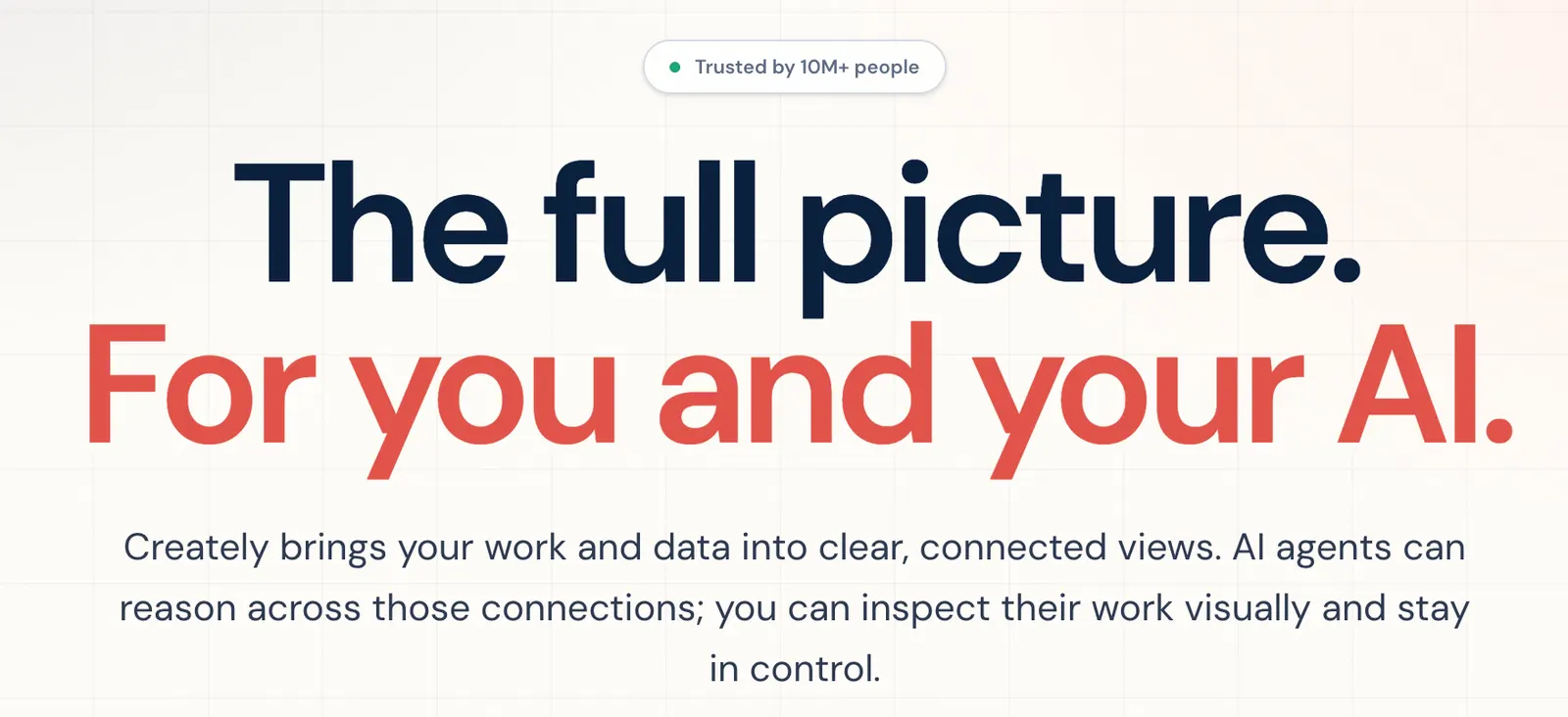
Creately's published materials have stated that the platform serves more than 10 million people and over 1,000 teams. These are company-reported figures, not independently verified measurements of monthly active users.
There is no single reliable public figure that should be treated as Creately AI's current monthly active user count, AI diagram generation total, or app download number. Because the AI functionality is part of the broader Creately platform, platform-wide figures should not be presented as AI-only adoption statistics.
Creately serves users working in business operations, project management, software development, education, and visual collaboration. However, a definitive ranking of its largest user countries or regions should not be claimed without current, reliable geographic data.
For someone evaluating Creately, the more useful question is whether it improves a real workflow. Try creating a customer journey, process map, or project diagram and compare the time required with your current method. That gives you a practical measure of value without relying on uncertain traffic estimates.
⚖️ Creately AI: Pros and Cons
Pros
- Faster first drafts: Natural-language prompts can reduce the time spent placing shapes and connectors manually.
- Continued editing: Users can refine and expand diagrams instead of treating the AI output as a finished, unchangeable result.
- Useful for business workflows: Process maps, mind maps, and planning diagrams are natural fits for the platform.
- Collaboration features: Teams can review and maintain visual information in a shared workspace.
- Templates and reusable structures: Existing templates can save time when creating similar business documents repeatedly.
Cons
- Human review is necessary: Generated diagrams can omit steps, make incorrect assumptions, or show misleading relationships.
- Free-plan limitations: The published 45-item-per-canvas limit can be restrictive for complex diagrams.
- Specialized functionality: It does not replace general chat, coding, image generation, or advanced design software.
- Pricing needs verification: Plan names, billing arrangements, and included features may change, so check the current subscription details before paying.
🔍 Creately AI vs. Miro, Lucidchart, and FigJam
Creately AI, Miro, Lucidchart, and FigJam all support visual work, but they are not interchangeable. The best option depends on whether your priority is structured diagramming, collaborative brainstorming, formal documentation, or design workshops.
| Tool | Main Strength | Best Use Case | Comparison with Creately AI |
|---|---|---|---|
| Creately AI | AI-assisted diagramming and structured visual collaboration | Business processes, workflows, mind maps, and planning | A strong option for teams that want to generate and refine structured diagrams in one workspace. |
| Miro | Collaborative whiteboarding and workshops | Brainstorming, remote workshops, and product discovery | Worth comparing when open-ended collaboration and workshop facilitation are the main priorities. |
| Lucidchart | Business and technical diagramming | Flowcharts, process maps, organizational charts, and technical documentation | A close alternative when formal diagramming features and structured documentation are central to the workflow. |
| FigJam | Collaborative ideation within the Figma ecosystem | Design workshops, brainstorming, and early product discussions | A natural option for teams that already use Figma and want ideation to sit close to their design workflow. |
Feature Differences
AI diagram generation: Creately AI focuses on creating and modifying visual structures from prompts. Competing products also offer AI-assisted capabilities, but their exact features and limits differ by plan.
Formal diagrams: Creately and Lucidchart are both relevant to process documentation and structured diagrams. Compare the specific diagram types, connectors, imports, and export formats your work requires.
Brainstorming: Miro and FigJam are strong candidates for teams that spend much of their time in collaborative workshops. Creately also supports visual collaboration, but its structured diagramming capabilities may be more important to its appeal.
Pricing: All four products have changing subscription structures. Compare user seats, AI usage limits, export formats, collaboration controls, integrations, and billing terms instead of choosing based only on the lowest advertised starting price.
Which Tool Should You Choose?
- Choose Creately AI if you want AI-assisted diagrams and structured business workflows.
- Consider Miro if brainstorming and collaborative workshops dominate your team's work.
- Consider Lucidchart if your priority is formal business or technical diagramming.
- Consider FigJam if your team already works in Figma and wants a collaborative space for design-related ideation.
There is no universal winner. Create the same sample workflow in two tools and compare the editing effort, output quality, collaboration experience, and total cost. That test will usually tell you more than a long list of advertised features.
🔐 Privacy and Security Considerations
Before entering information into Creately AI, consider whether it contains confidential customer details, employee records, financial information, internal product plans, or other sensitive data.
For ordinary brainstorming, a general description is often enough. Avoid adding real names, account numbers, private customer messages, or identifying information when placeholders can accomplish the same task.
Businesses should review Creately's current privacy policy, data processing terms, retention practices, and security documentation before using AI features with confidential information. Enterprise customers should confirm which administration and security controls are included in their proposed plan.
For operational or compliance-related workflows, keep a human approval step before treating an AI-generated diagram as an official procedure. AI can help organize information, but it cannot independently guarantee that a process complies with company policies or applicable laws.
🧪 Practical Example: Building a Customer Onboarding Workflow
Imagine a small software company wants to document how a new customer moves from signing a contract to using the product successfully. The process involves sales, customer success, and technical support, but responsibilities are not clearly documented.
Step 1: Write the Prompt
Create a customer onboarding workflow for a B2B software company. Include contract confirmation, account setup, data collection, kickoff meeting, training, first-use check, issue escalation, and a 30-day follow-up. Show who owns each stage and include decision points when customer information is incomplete or setup fails.
Step 2: Check the Main Steps
Review the generated workflow against the company's actual onboarding process. If account setup requires a security review, make sure the diagram includes that dependency instead of implying that setup can always proceed immediately.
Step 3: Add Ownership and Exceptions
Identify which tasks belong to sales, customer success, technical support, or the customer. Add alternative paths for missing data, delayed training, and failed setup. These details determine whether the diagram is useful in real operations.
Step 4: Ask Colleagues to Review It
Ask each team to check its own handoffs. Sales may identify a missing contract step, while customer success may spot a point where responsibility changes hands without a clear owner.
Step 5: Put the Diagram to Work
Once the process is approved, use the diagram in onboarding documentation, internal training, or project planning. Keep task assignments and deadlines in the team's designated project management system if that system is the source of truth.
This example illustrates the practical value of Creately AI. It can speed up the first draft, but the people who understand the actual process still need to validate and approve the final version.
📈 Can Creately AI Help with SEO and GEO?
Creately AI is not an SEO platform, keyword research tool, or dedicated generative engine optimization service. Its value for SEO and GEO is indirect: it can help content teams organize research, plan topic relationships, and document editorial workflows.
Content Planning
Content teams can use mind maps to organize a main topic, supporting articles, comparison pages, tutorials, and frequently asked questions. This makes it easier to identify content gaps and plan how individual pages relate to one another.
Editorial Workflows
A flowchart can show how an article moves from research to drafting, fact-checking, editing, publishing, and updating. Teams can use it to identify approval bottlenecks and clarify responsibilities.
Research and Topic Relationships
Visual diagrams can help editors organize entities, questions, evidence, and related concepts before writing. The team must still verify factual claims and make sure the final page answers the reader's actual question.
What It Cannot Guarantee
Using Creately AI does not automatically improve Google rankings, increase organic traffic, or guarantee that a page will appear in AI-generated answers. Those outcomes depend on content quality, relevance, site health, competition, authority, and other factors.
For SEO and GEO teams, Creately is best treated as a planning and process visualization tool rather than a direct ranking solution.
🏁 Final Verdict: Is Creately AI Worth Using?
Creately AI is worth trying if you regularly turn complicated information into diagrams, workflows, mind maps, or structured plans. Its main advantage is straightforward: it can help you move from a rough description to an editable visual draft without building every element manually.
It is particularly relevant to business analysts, operations teams, project managers, product teams, educators, and organizations that need to document how work gets done. Teams that already rely on diagrams may appreciate the ability to generate a starting point and continue editing it in the same workspace.
The main limitation is that generated diagrams still need human review. AI may omit exceptions, make incorrect assumptions, or suggest a sequence that does not match the way an organization actually operates. The free plan's item limits may also become restrictive for larger projects.
Our recommendation: Start with the free plan and test Creately AI on one real task, such as a customer journey, onboarding process, or project workflow. Compare the result with your usual method. If it saves meaningful time and works well for your team, consider upgrading. If your main requirement is long-form writing, code generation, graphic design, or general AI chat, a more specialized tool will probably provide better value.
❓ Frequently Asked Questions About Creately AI
What is Creately AI used for?
Creately AI helps users generate and refine diagrams, organize brainstorming notes, expand ideas, and structure visual information. Common applications include flowcharts, mind maps, business processes, project planning, and collaborative workshops.
Is Creately AI free?
Creately offers a free plan with limits on items per canvas, folders, imports, and selected features. Check the current plan details to confirm which AI capabilities and usage limits are available to your account.
Can Creately AI generate flowcharts from text?
Yes. Creately supports AI-assisted diagram generation through natural-language prompts and AI-enabled templates. Generated flowcharts should be reviewed and edited before being used as official process documents.
Does Creately AI support mind maps?
Creately AI can help generate mind maps and organize related ideas. It is useful for brainstorming and early planning, although users should check that the suggested relationships are accurate and meaningful.
Does Creately have a desktop application?
Creately's main workflow is browser-based. Check current product information before assuming that a separate native Windows or Mac application is available.
Can Creately AI replace Miro or Lucidchart?
It may replace some workflows, but not every feature or use case. Creately is a strong option for structured visual planning and AI-assisted diagrams. Miro may suit workshop-heavy teams, while Lucidchart may better fit users with specific formal diagramming requirements.
Can Creately AI write articles or generate code?
Those are not its primary strengths. Creately AI focuses on visual structures and collaboration. A writing assistant or coding-focused AI tool is generally more suitable for long-form content, code completion, debugging, and software implementation.
How accurate are Creately AI diagrams?
Accuracy depends on the prompt, context, and complexity of the task. AI can provide a useful draft, but it may miss exceptions, introduce assumptions, or connect steps incorrectly. Important diagrams should be reviewed by someone who understands the process.
How much does Creately AI cost?
Creately offers free and paid plans, including options for individuals, teams, businesses, and enterprise customers. Publicly reported prices may differ from current checkout prices, so verify the latest price, billing period, user allowance, and AI limits before purchasing.
Who benefits most from Creately AI?
Business analysts, operations specialists, project managers, product teams, educators, and organizations that regularly create diagrams are likely to benefit most. Casual users who only need occasional simple charts may find the free plan sufficient.
Comments