

Cursor: What It Is, AI Coding Features, Pricing and How to Use It
🤖 What Is Cursor?
Cursor is an AI-powered code editor built for software development. It is based on the familiar workflow of a modern code editor, but adds AI features that can understand a project, edit multiple files, search a codebase, run terminal commands, fix errors, and help developers build features from natural-language instructions.
The important difference is that Cursor is not simply a chatbot placed next to your code. Its AI can work with the actual project you are editing. Instead of copying code into a separate AI website and then pasting the answer back into your editor, you can ask Cursor to inspect the repository and make changes directly in the development environment.
That makes Cursor particularly useful for developers who spend a large part of their day moving between source files, documentation, terminals, Git, debugging tools, and AI assistants.
🌎 How Cursor Is Used Around the World
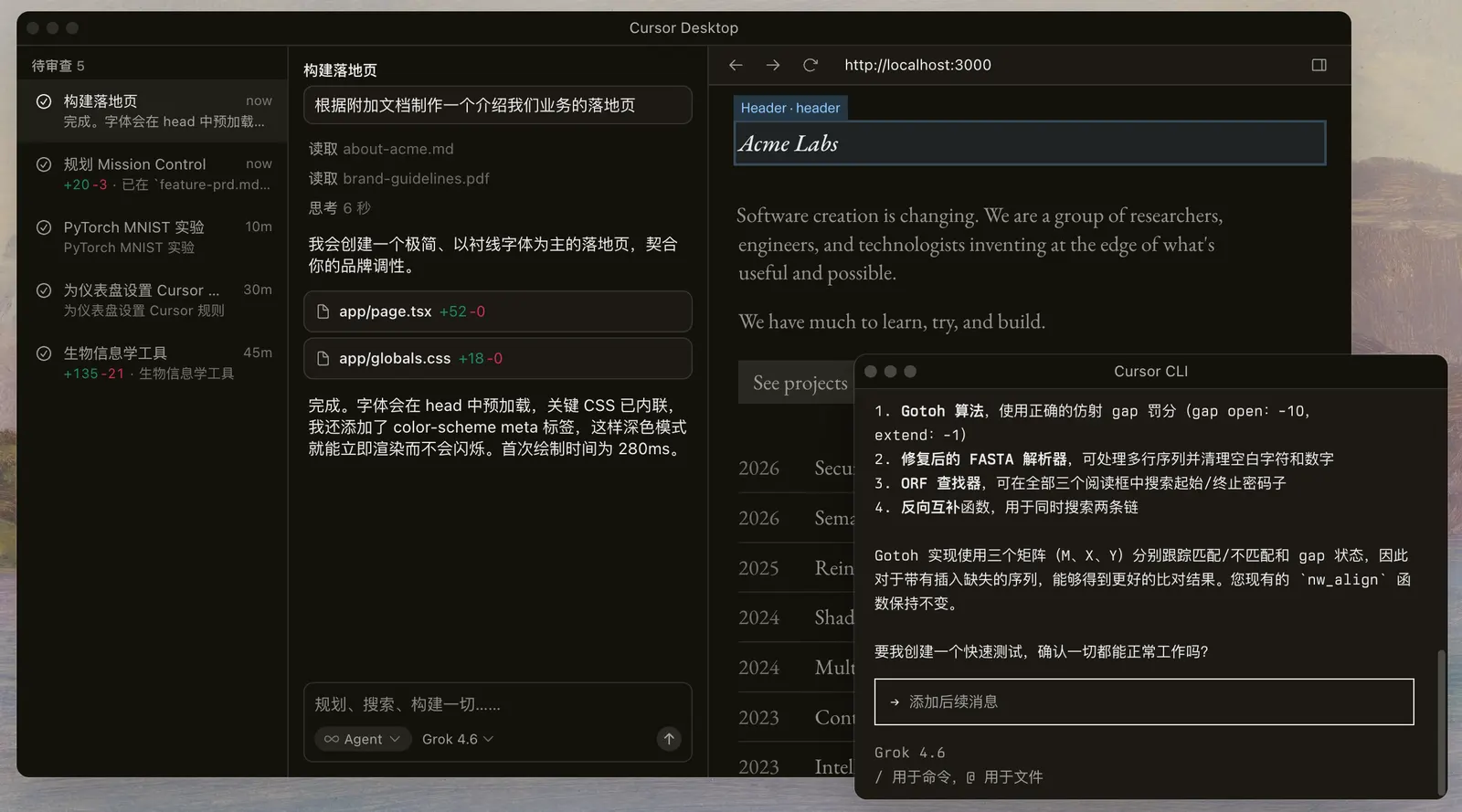
Cursor has become popular among software developers, startups, independent programmers, and engineering teams that want AI to participate directly in the development workflow.
In the United States, a common use case is rapid product development. A developer can describe a feature, ask Cursor to inspect the existing architecture, implement the change, run tests, and then review the resulting code.
For startup teams, this can reduce the amount of time spent on repetitive implementation work. A developer can spend more time deciding how a product should work instead of manually creating every component, API endpoint, configuration file, or test.
Cursor is also useful for existing projects. You do not need to start a new application from scratch. The Agent can inspect an existing repository, locate relevant files, understand relationships between components, and help modify the current codebase.
🚀 Main Features of Cursor
🧠 AI Codebase Understanding
One of Cursor's most useful capabilities is its ability to work with the context of a real codebase. Instead of asking questions about one isolated file, you can ask it to trace how a feature works across the project.
This is especially helpful when you join an unfamiliar project or inherit a codebase written by another developer. You can ask questions such as which files handle authentication, where a specific API is called, or how data moves from the frontend to the backend.
⚡ Agent
Agent is the feature that turns Cursor from an AI autocomplete tool into an AI coding assistant capable of handling multi-step tasks.
Agent can search the codebase, edit multiple files, run terminal commands, create features, refactor code, investigate bugs, and run checks. You describe the task in natural language and Cursor determines which files and tools are needed.
For example, instead of asking for a single React component, you can ask Cursor to add a user profile page, connect it to the existing API, add loading and error states, update the routing, and run the relevant tests.
⌨️ Tab Completion
Cursor's Tab feature provides inline code suggestions while you type. It can complete the current line or suggest larger edits based on the surrounding code.
This is useful for repetitive programming work. You can write the beginning of a function and allow Cursor to predict the remaining implementation rather than generating the entire project through an AI chat.
🧩 Composer
Composer is Cursor's agentic coding model designed to work across a project rather than generating isolated snippets.
It is useful when a change requires several related files to be modified. For example, changing an API response may require updates to the backend, TypeScript types, frontend components, and tests. Composer can help coordinate these changes.
🔍 Code Search
Cursor can search through a repository to locate relevant code before making changes. This reduces the need to manually open dozens of files when working on a large project.
It is particularly useful for questions such as "Where is this function used?", "Which components depend on this API?", or "Find all places where this configuration is referenced."
🛠️ Terminal and Tool Use
Agent can work with terminal commands and development tools. This means it can do more than edit text. It can install dependencies, run tests, inspect errors, execute scripts, and use the results to continue working.
This is one of the reasons Cursor is more useful for real software projects than a traditional AI chat interface.
🌐 Browser and Cloud Agents
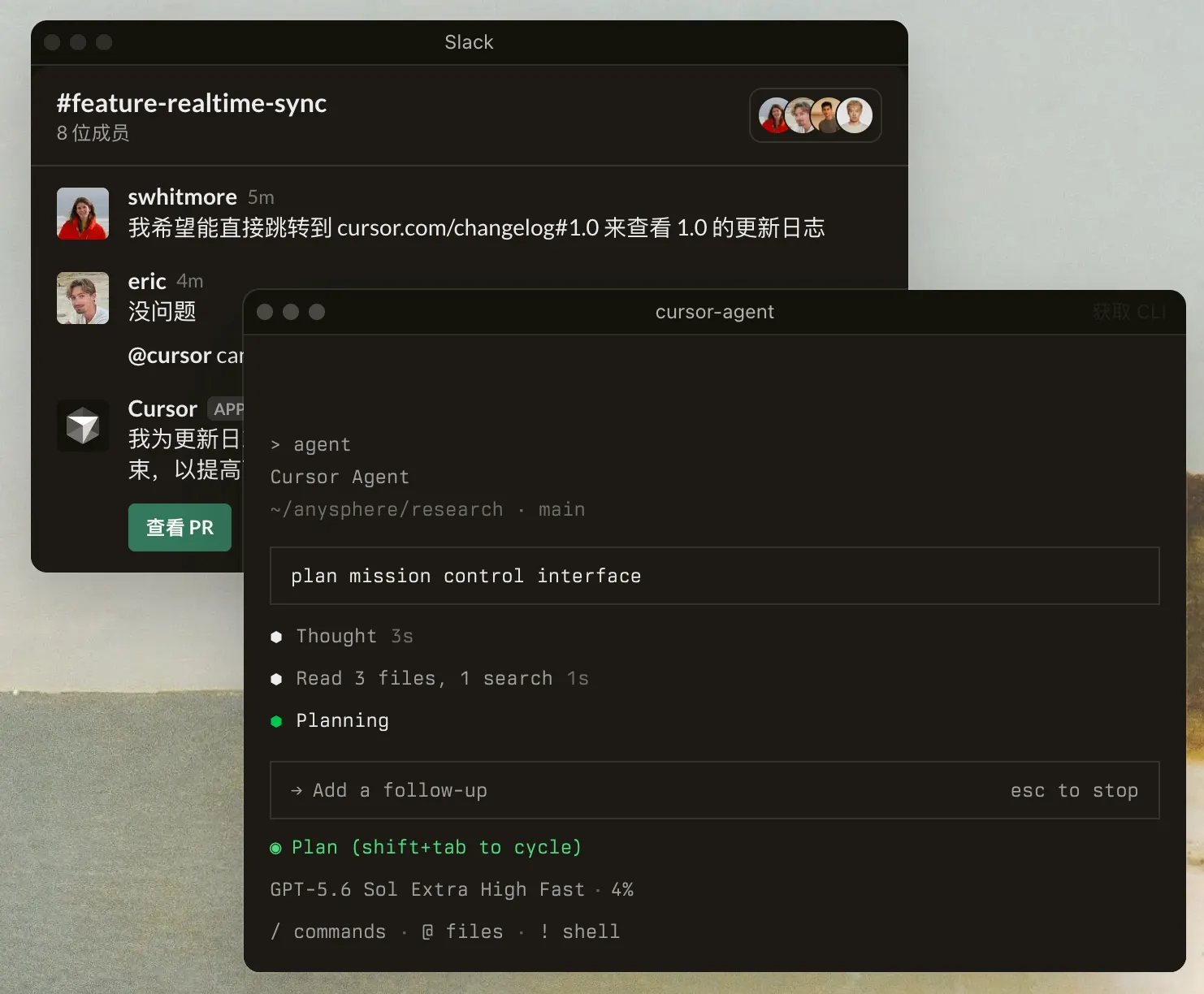
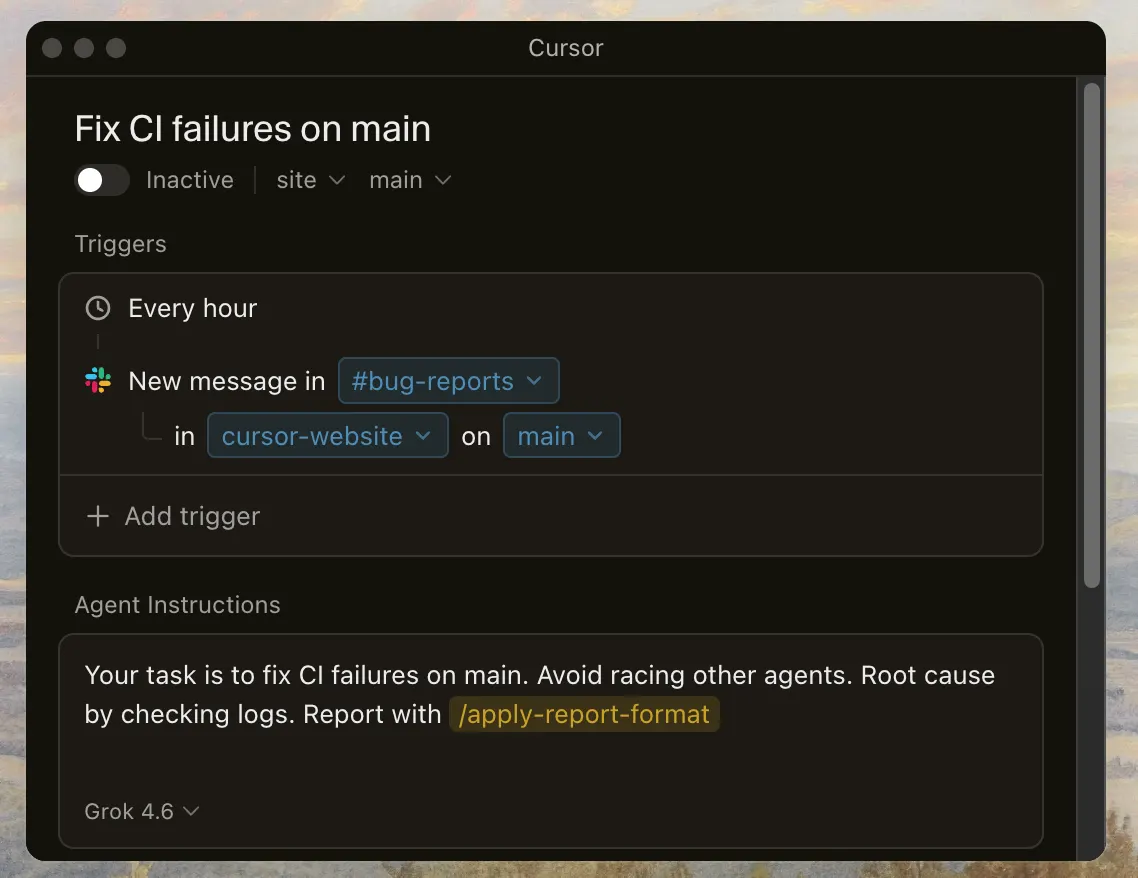
Cursor also provides browser-based and cloud-agent workflows. Agents can work on development tasks outside the traditional local editing workflow, which is useful when you want AI to work on tasks while you focus on another part of the project.
🔗 MCP, Skills and Hooks
Cursor supports MCP, skills, and hooks, allowing developers to connect additional tools and customize how agents behave.
For experienced developers, this opens the door to more sophisticated workflows where an AI agent can interact with external services, project-specific tools, development scripts, and internal rules.
📖 How to Use Cursor
Start by downloading Cursor and opening an existing project or creating a new one. Once the project is open, let Cursor index and understand the codebase before asking it to make large changes.
For a simple task, open Agent and describe exactly what you want. For example: "Add email and password validation to the login form. Keep the existing design, reuse the current validation utilities, and add tests for invalid input."
Cursor will inspect the project, determine which files are relevant, make changes, and show the resulting modifications. Review the diff before accepting important changes.
💡 How to Get Better Results from Cursor
🎯 Give Cursor a goal, not just a command
"Fix this code" is usually a weak instruction. Explain what is wrong, what the expected behavior is, and what should not be changed.
A better request is: "The checkout button currently submits twice when users click quickly. Find the cause, fix it without changing the checkout API, and add a regression test."
📋 Ask Cursor to inspect before editing
For unfamiliar projects, ask Cursor to explain the relevant architecture before making changes. This gives you an opportunity to catch a wrong assumption before the AI edits the repository.
🔧 Work in smaller steps
Do not ask an AI agent to redesign an entire application in one prompt unless you are prepared to review a large number of changes.
A better workflow is to break the project into stages: understand the current implementation, create a plan, implement one feature, run tests, review the diff, and then continue.
🧪 Always run tests
AI-generated code can look convincing while still containing subtle bugs. Ask Cursor to run the existing test suite after meaningful changes. For frontend projects, also check the actual browser behavior rather than relying entirely on tests.
🔍 Review the diff
The ability to generate code quickly does not remove the need for code review. Check database changes, authentication logic, API permissions, payment logic, security-sensitive code, and destructive commands manually.
🛠️ How to Install Cursor
🍎 macOS
Download the macOS version from the official Cursor website. Cursor currently provides separate downloads for Apple Silicon, Intel-based Macs, and a Universal version.
🪟 Windows
Windows users can choose the appropriate x64 or ARM64 installer. The website provides both system-level and user-level installation options.
🐧 Linux
Linux users can download DEB, RPM, or AppImage packages, with ARM64 and x64 options available for supported formats.
💻 After Installation
Launch Cursor, sign in to your account, open a project folder, and allow the editor to analyze the project. You can then use Tab completion, Agent, Composer, terminal tools, and other AI features.
💰 Is Cursor Free?
Yes. Cursor has a free Hobby plan. The current official pricing page lists Hobby at $0 per month and includes limited Agent requests and access to Composer.
The paid individual plans currently include Pro at $20 per month, Pro+ at $60 per month, and Ultra at $200 per month. Cursor also offers Teams plans for organizations.
| Plan | Price | Main Features |
|---|---|---|
| Hobby | Free | Limited Agent requests and Composer access |
| Pro | $20/month | Higher Agent limits, frontier models, MCP, skills, hooks, Cloud Agents and Bugbot |
| Pro+ | $60/month | Everything in Pro with approximately 3x Pro Agent limits |
| Ultra | $200/month | Everything in Pro with approximately 20x Pro Agent limits and priority access to new features |
| Teams Standard | $40/user/month | Team administration, centralized billing, collaboration and business features |
| Teams Premium | $120/user/month | Teams Standard features with higher Agent limits |
| Enterprise | Custom | Advanced security, administration, pooled usage and enterprise support |
Cursor's pricing is usage-based in addition to the subscription structure. The amount of AI usage you receive depends on the models you use and the plan. When included usage is exhausted, eligible plans can continue with on-demand usage billed according to the applicable model rates.
💳 Which Cursor Plan Should You Choose?
For beginners: Hobby is enough to understand how Cursor works and test the basic AI workflow.
For regular developers: Pro is the practical starting point if you use Agent frequently during normal development.
For heavy AI coding: Pro+ or Ultra makes more sense when you use agents throughout the day and regularly reach the limits of a lower plan.
For development teams: Teams is designed for centralized billing, administration, collaboration, privacy controls, and organization-level management.
Do not choose a plan based only on the advertised monthly price. If you use expensive frontier models heavily, actual usage can become more important than the subscription fee.
👥 Who Should Use Cursor?
👨💻 Professional developers: Cursor can reduce repetitive coding work and speed up debugging, refactoring, testing, and feature development.
🎓 Students: It can be useful for learning how real projects are structured and experimenting with programming ideas.
🚀 Startup teams: Small teams can use AI agents to accelerate product development when engineering resources are limited.
🧑💻 Freelancers: Cursor can help with maintaining several client projects and dealing with unfamiliar codebases.
🏢 Engineering teams: Teams can use shared rules, skills, tools, privacy controls, and centralized administration.
❓ Common Cursor Problems
Why does Cursor make incorrect changes?
AI agents can misunderstand requirements or make assumptions about an unfamiliar codebase. Give the agent more context, define constraints, and ask it to inspect the relevant files before editing.
Why does Agent sometimes modify too many files?
Large tasks naturally require changes across several files. If you want tighter control, ask Cursor to create a plan first and explicitly limit the scope of the changes.
Why does the AI consume usage quickly?
Different AI models have different costs. Large context windows, complex Agent tasks, repeated requests, and expensive frontier models can consume usage more quickly.
Why does Cursor sometimes produce code that looks correct but does not work?
AI models generate code based on patterns and context; they do not guarantee that the implementation is correct for your specific application. Run tests, inspect the diff, reproduce the behavior, and verify the result in the real application.
Can Cursor replace a professional developer?
No. Cursor can automate a significant amount of implementation work, but software development still requires architecture decisions, security review, debugging, testing, product judgment, and responsibility for the final system.
🔐 Security and Privacy
Developers should pay particular attention to privacy when using AI coding tools with private repositories. Cursor provides Privacy Mode, and its official documentation states that when Privacy Mode is enabled, Cursor guarantees that code data is not used for training by Cursor or its model providers.
Even with privacy controls enabled, companies should review their own security requirements, access policies, compliance obligations, and the services connected to Cursor before using it with sensitive source code.
🏆 Is Cursor Worth Using?
Cursor is most valuable when you treat it as a development partner rather than an automatic code generator. Its strongest advantage is the ability to work directly with a real repository, understand relationships between files, modify multiple files, run tools, and iterate on the result.
If you only need occasional code completion, the free plan may be enough. If you write software every day and use AI heavily for debugging, refactoring and feature development, the paid plans become much more useful.
The biggest mistake is giving Cursor a huge task and accepting everything it generates without review. The better workflow is simple: let the AI inspect the project, ask it to create a plan, make changes in controlled steps, run tests, review the diff, and only then merge the code.
Comments