
Figma AI:从设计构思到可用原型的AI设计工具
📦 What Is Figma AI?
Figma AI is not a standalone AI design application. Instead, it is a collection of artificial intelligence features built directly into the Figma platform. These features can help with interface generation, design editing, image processing, prototyping and repetitive design tasks.
What makes Figma AI different from many AI image generators is that the result remains connected to the Figma design workflow. You can generate an initial interface, edit individual elements, change layouts and continue refining the design manually. This makes it useful not only for creating visual concepts, but also for real product design work.
For designers, the biggest benefit is not simply generating something quickly. It is reducing the amount of time spent on repetitive work so that more attention can be given to user experience, information architecture and product decisions.
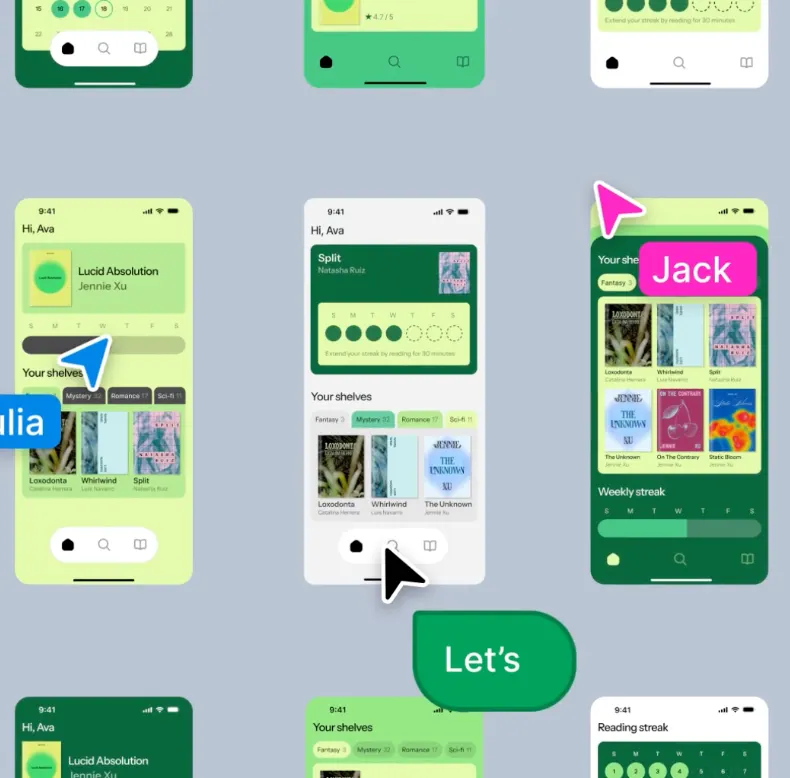
🌍 Figma AI Around the World
Figma has become a widely used design platform among UX/UI designers, product teams, developers, startups and large organizations around the world. Its AI strategy is now moving beyond simple design assistance and toward a workflow that connects product ideas, interface design, prototypes and development.
Figma's AI ecosystem includes features such as First Draft, Figma Make, AI image editing and the newer Figma Agent. Figma Agent began rolling out in beta in May 2026, allowing users to interact with their designs through natural-language instructions.
The availability of some AI features can vary depending on the user's account, plan, seat type and the stage of the feature rollout.
🧩 Main Features and Highlights
🤖 Figma Agent
Figma Agent allows users to interact with their designs using natural language. Instead of manually changing every element, you can describe what you want to change and let the agent handle part of the work.
For example, you could ask it to simplify a navigation menu, change the layout of a dashboard or improve the visual hierarchy of a particular screen.
🎨 First Draft
First Draft can turn a product idea into an editable website or mobile-app design. It is particularly useful when you need to explore several design directions before deciding which one deserves further development.
It works best with common interface patterns such as dashboards, landing pages, e-commerce pages and mobile applications. More unusual or highly specialized layouts may require additional manual work.
🚀 Figma Make
Figma Make goes beyond static interface generation. It can turn prompts and existing designs into functional prototypes and web applications.
This makes it particularly interesting for designers who want to move closer to development without immediately writing every line of code themselves. After generating a prototype, you can continue refining it through conversations with AI.
✨ AI Image Editing
Figma AI can also assist with image-related tasks such as generating images, removing backgrounds, isolating objects and expanding images.
The advantage is convenience. Designers do not always need to switch to another image-editing application for simple production tasks.
🔗 Figma MCP
Figma's MCP capabilities are designed to connect Figma with AI agents and development workflows. This makes it possible for AI-powered tools to work with design context rather than treating a design as an isolated image.
🎯 How to Use Figma AI
The easiest way to get started is to give Figma AI a specific design problem rather than a vague instruction.
For example, instead of asking “Design a modern shopping app,” try something more specific: “Create a mobile checkout page for an online running-shoe store. Include product information, size selection, shipping address, payment method, order total and a clearly visible purchase button.”
Once the first version is generated, improve it step by step. You can ask AI to reduce visual clutter, improve information hierarchy, make the main button more prominent or simplify the navigation.
This iterative approach is generally more useful than trying to describe the entire finished product in one huge prompt.
💡 Tips for Getting Better Results
Describe the user before describing the design. Tell Figma AI who will use the interface, what they need to accomplish and which information matters most.
Use specific instructions. “Make the page better” is difficult to interpret. “Make the checkout process easier to scan and reduce the number of visual elements competing with the purchase button” gives the AI a much clearer direction.
Provide existing design context. If you already have components, brand assets, images or existing screens, use them whenever possible. This can produce results that are much closer to your actual project.
Do not blindly accept AI output. A visually attractive interface can still have poor usability, confusing navigation or weak information hierarchy. AI should speed up the design process, not replace design judgment.
🛠️ How to Install Figma AI
There is no separate “Figma AI” application that needs to be installed. The AI capabilities are integrated into Figma and can be accessed through the relevant Figma products.
For Figma Design, available AI features can generally be accessed through the Actions menu or the relevant AI controls inside the editor.
Because Figma is continuously introducing and updating AI features, the exact interface and availability may change over time.
💰 Is Figma AI Free?
Figma offers a free Starter plan, but that does not mean every AI feature is unlimited or completely free.
The amount of AI usage available depends on the Figma plan and seat type. Figma also uses an AI credit system for many AI-powered operations, and different tasks can consume different amounts of credits.
The Starter plan currently includes a limited amount of AI usage. Paid plans provide larger AI allowances and additional collaboration and professional features.
For businesses and teams that use AI heavily, it is important to check the current Figma pricing and AI-credit rules before choosing a plan, because these limits and prices can change as new AI features are introduced.
👥 Who Should Use Figma AI?
Figma AI is particularly useful for UX/UI designers, product designers, developers, product managers, startup teams, design agencies and marketers.
For beginners, it can make the first step of creating an interface much easier. For experienced designers, its value is mainly in reducing repetitive work and speeding up early-stage exploration.
Developers can also benefit from Figma Make when they need to turn a design concept into an interactive prototype before building the final product.
❓ Common Problems
🔍 Why can't I see Figma AI?
AI features may depend on your plan, seat type, account permissions and whether the feature has been enabled for your account. Some new features are also released gradually.
🔍 Why doesn't First Draft generate what I expected?
First Draft works best with familiar website and mobile-app patterns. Highly unusual layouts or very specific visual requirements may require additional manual editing.
🔍 Why are my AI credits being used so quickly?
Different AI functions have different credit costs. Image generation, image editing, prototyping and agent-based tasks may consume different amounts of AI credits.
🔍 Can Figma AI replace a professional designer?
Not completely. AI can generate useful starting points and automate repetitive tasks, but product strategy, usability, accessibility, branding and final design decisions still require human judgment.
🔍 Can Figma Make build a real application?
Figma Make can generate functional prototypes and web applications, but generated output should be reviewed, tested and secured before being used as production software.
📈 Final Thoughts
Figma AI is most useful when you treat it as a design assistant rather than a replacement for a designer. Its real advantage is the connection between AI generation and an editable design environment.
For simple visual experiments, there are many AI tools available. Figma AI becomes more interesting when the goal is to move from an idea to an editable interface, then from that interface to an interactive prototype and eventually toward development.
Comments