

🎬 Genmo AI Review: Features, Pricing, Mochi Video Generation, and Best Use Cases
Genmo AI is an AI video generation platform built for creators who want to turn written ideas into moving visuals without starting from a traditional video editing timeline. Its best-known model, Mochi 1, focuses on text-to-video generation and is available as an open-source model under the Apache 2.0 license. Genmo is particularly interesting for independent creators, designers, developers, and teams experimenting with AI-generated video.
What makes Genmo worth a closer look is its combination of a browser-based creative experience and research into open video models. However, it is important to distinguish the company's current video-generation focus from its earlier all-in-one creative assistant. Not every feature described in older reviews is necessarily available in the current product.
Quick verdict: Genmo is worth exploring if you want AI-generated video, experimental visual storytelling, or a model that can be customized by developers. If your priority is a polished, end-to-end video editor with predictable commercial production workflows, compare it with other AI video tools before committing to a subscription.
📌 What Is Genmo AI?
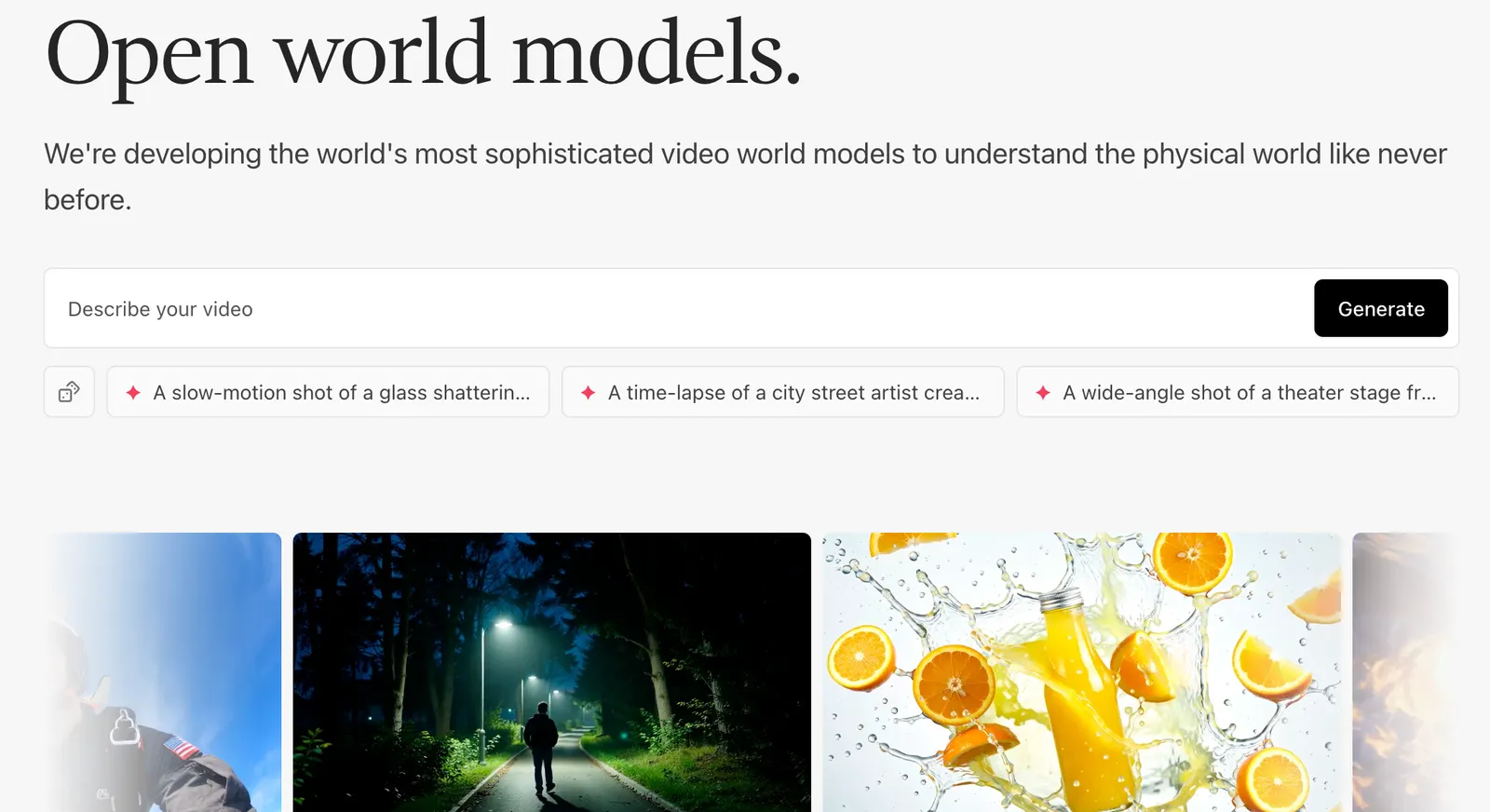
Genmo AI is a generative AI company focused on video world models—AI systems designed to generate and model visual environments over time. Rather than concentrating only on text or still images, Genmo develops technology intended to make video generation and interactive visual experiences more accessible.
The company introduced Genmo Chat in March 2023 as a creative assistant capable of helping users generate images, videos, and 3D assets. Its product direction has since evolved toward video-generation research, with Mochi 1 becoming its best-known open-source release. The company's current positioning emphasizes video world models and tools for exploring them.
- Developer: Genmo, Inc.
- Product category: AI video generation and generative video research.
- Early product launch: Genmo Chat was introduced in March 2023.
- Best-known model: Mochi 1, an open-source text-to-video model.
- Main purpose: Turn text concepts into video and support experimentation with generative visual content.
- Primary audience: Video creators, digital artists, developers, researchers, and creative teams.
- Access options: Browser-based tools and open-source model resources.
One distinction matters when evaluating Genmo: the online playground and the open-source model are different ways of using the technology. The hosted service prioritizes convenience, while running the model yourself offers more control but requires technical knowledge and suitable computing hardware.
🛠️ 10 Key Genmo AI Features
1. Text-to-Video Generation
Describe a scene in natural language and use AI to turn the description into a video. For example, a creator might request a cinematic shot of a small boat crossing a misty lake at sunrise. The model interprets the subject, environment, lighting, and motion to produce a visual starting point.
2. Mochi 1 Video Model
Mochi 1 is Genmo's flagship open-source video-generation model. It gives developers and creative technologists an opportunity to experiment with AI-generated motion beyond a closed, subscription-only interface.
3. Image-Inspired Video Creation
Image-to-video workflows can help transform a still visual into a moving scene when supported by the selected interface or workflow. This is useful for animating concept art, product imagery, illustrations, and mood boards. Available inputs and controls can vary between Genmo's hosted tools and third-party implementations.
4. Natural-Language Creative Direction
Users can describe subjects, actions, environments, and visual styles using ordinary language. Clear prompts make it easier to communicate a creative idea without learning a conventional animation package first.
5. Motion and Scene Experimentation
Generative video models can explore movement, camera-like perspectives, atmosphere, and interactions between objects. Results are generated rather than precisely keyframed, so this feature is best treated as creative exploration rather than frame-accurate animation control.
6. Open-Source Model Access
Mochi 1 is released under Apache 2.0, allowing individual and commercial use subject to the license terms. Developers can inspect the project, experiment with the model, and build custom workflows instead of relying entirely on a hosted interface.
7. Local and Self-Hosted Experimentation
Technical users can explore running Mochi through its code repository and supported workflows. Local deployment can provide greater control over experimentation, although hardware requirements, setup complexity, model dependencies, and inference speed need to be considered.
8. ComfyUI Workflow Integration
Mochi can be explored through compatible ComfyUI workflows. This is particularly useful for users who prefer node-based visual pipelines and want to combine model inference with other image or video processing steps.
9. Creative Prototyping
Genmo can be used to test visual directions before investing in a full production. Creators can explore alternative scenes, moods, and story concepts, then select promising outputs for further editing in a dedicated video editor.
10. Research and Custom Development
The open model and associated research resources make Genmo relevant to developers studying generative video, building experimental creative applications, or investigating how AI can simulate visual environments.
Feature note: These features describe Genmo's documented capabilities and the broader Mochi ecosystem. Specific editing controls, input formats, generation limits, and integrations depend on the version or implementation being used. They should not all be assumed to exist in every hosted plan.
✨ What Makes Genmo AI Different?
An Open-Source Video Model, Not Just a Closed Web App
One of Genmo's strongest differentiators is Mochi 1's Apache 2.0 licensing. Users who need more control can investigate the model and build their own workflows. Many hosted AI video products place greater emphasis on a managed interface and subscription-based generation.
A Stronger Focus on Video Research
Genmo's current direction centers on video world models rather than presenting itself simply as a general-purpose content generator. This makes it interesting to people who care about how AI models represent motion, environments, and visual interactions.
More Room for Technical Customization
Developers who are comfortable with Python, GPU environments, and node-based workflows can explore the model beyond the standard user interface. That flexibility is valuable for prototyping and research, although it introduces a learning curve that ordinary users may not want.
Useful for Early-Stage Visual Ideas
Genmo can help a creator move from a written concept to a rough moving visual without first producing every asset manually. It is particularly useful when the goal is to explore possibilities, rather than deliver a perfectly controlled final shot on the first attempt.
The trade-off is straightforward: openness and experimentation are not the same as production convenience. A closed platform with stronger editing controls, more predictable results, or a simpler commercial workflow may be a better choice for deadline-driven projects.
💼 Practical Use Cases for Genmo AI
Marketing and Social Media
Marketing teams can experiment with short visual concepts for social posts, campaign mood boards, product teasers, and creative pitches. Generated clips may need additional editing, branding, captions, and review before publication.
Video Production and Storyboarding
Independent filmmakers and video producers can test the atmosphere of a scene, explore visual references, and communicate ideas to collaborators. Genmo is more useful here as an ideation tool than as a replacement for an entire professional editing pipeline.
Graphic Design and Digital Art
Designers can explore motion-based interpretations of illustrations, environments, and concept art. These experiments can help establish a visual direction for a campaign, portfolio project, or digital installation.
Education and Presentations
Educators and students can use generated video to illustrate abstract ideas, build visual examples, or make presentations more engaging. Important factual or scientific content should be checked carefully because generated footage may contain visual inaccuracies.
Game Development
Game developers can experiment with environmental concepts, cinematic references, mood tests, and visual prototypes. Generated footage should not automatically be treated as production-ready game assets, especially when consistent characters, geometry, or repeatable animation are required.
AI Research and Prototyping
Developers and researchers can investigate text-to-video generation, evaluate model behavior, and test custom creative pipelines. This is one of the clearest reasons to consider the open-source model rather than relying exclusively on a browser interface.
Writing and Programming Workflows
Genmo is not primarily an AI writing assistant or coding copilot. Writers can use it to visualize scenes from a script, while programmers can build applications around compatible model workflows. For long-form writing, code completion, or debugging, dedicated language models are usually more appropriate.
🚀 How to Use Genmo AI: A Step-by-Step Guide
Step 1: Choose Your Access Method
Decide whether you want to use a hosted browser-based experience or experiment with the open-source Mochi model. The hosted route is generally easier for beginners. The self-hosted route is better suited to users who want to explore implementation details and can manage the technical requirements.
Step 2: Create an Account if Required
Open the current Genmo interface and follow its sign-up instructions if account access is required. Review any available usage limits and credit requirements before starting a generation. Access conditions may differ between hosted tools and open-source resources.
Step 3: Start with a Specific Scene
Instead of entering a broad request such as "make a beautiful video," define a subject, an action, an environment, a visual style, and a camera perspective. A more concrete description gives the model a clearer creative target.
Step 4: Write Your Prompt
For example, try: "A small red sailboat moving slowly across a calm mountain lake at sunrise, thin mist above the water, warm golden light, wide cinematic composition, gentle ripples, natural colors, slow forward camera movement."
Step 5: Generate and Review
Submit the prompt using the controls available in the selected interface. Review the output for motion quality, subject consistency, composition, and visual artifacts. Generation time and available settings depend on the model, service load, and account plan.
Step 6: Refine the Prompt
If the result is too busy, remove unnecessary details. If the subject does not move as expected, describe the action more explicitly. Change one or two variables at a time so you can understand which adjustments improve the result.
Step 7: Export or Continue in Another Tool
Use the available export options in the interface or compatible workflow. If you need subtitles, precise timing, music, transitions, or brand assets, finish the project in a dedicated video editor.
Step 8: For Developers, Explore Mochi
Technical users can review the project's setup instructions, check hardware and dependency requirements, and follow the documented model workflow. Test a small example first before investing time in a larger pipeline.
🧠 Genmo AI Prompt Tips for Better Results
Describe What Happens, Not Just What You See
A video prompt needs an action. "A dog in a park" describes a still scene. "A golden retriever runs through a sunlit park, slows down beside a wooden bench, and looks toward the camera" gives the model a more useful motion sequence.
Use a Simple Prompt Structure
A practical format is: subject + action + environment + lighting + camera perspective + visual style. You do not need to include every element every time, but this structure helps avoid vague requests.
Keep the Main Action Clear
Asking for several unrelated actions in a short clip can make the result less coherent. Start with one main subject and one clear action. Add secondary movement only after the basic scene works.
Specify Camera Movement Carefully
Terms such as "slow tracking shot," "static wide shot," and "gentle push-in" can communicate a desired visual direction. Actual control depends on the model's capabilities, so treat camera instructions as guidance rather than a guarantee.
Use Reference Images When Supported
If your chosen workflow accepts image inputs, start with a well-composed reference image. A clear subject and readable silhouette can make the intended scene easier to communicate. Avoid assuming every Genmo interface supports the same image-to-video controls.
Iterate in Small Steps
Do not rewrite the entire prompt after every generation. Change the lighting, movement, composition, or background separately. This makes it easier to identify which instructions actually help.
Review Outputs Before Publishing
Inspect faces, hands, text, object boundaries, and continuity between frames. AI-generated video can look convincing at first glance while still containing obvious errors when watched closely.
Example of a More Effective Prompt
Weak prompt: "A futuristic city video."
Improved prompt: "A wide cinematic view of a futuristic city at blue hour, elevated trains gliding between glass skyscrapers, warm windows glowing through light rain, reflections on the streets, slow forward camera movement, restrained science-fiction design, realistic lighting."
The improved version gives the model a defined environment, visible motion, lighting conditions, and a camera direction. It does not guarantee a perfect result, but it provides a clearer starting point.
💻 Genmo AI Installation and Platform Availability
- Web browser: The simplest route for users who want to explore Genmo's hosted tools without managing model infrastructure.
- Windows: No separate native Windows desktop application is established by the current product information. Browser access may be available; local model use depends on supported software and hardware.
- macOS: Browser access is the most straightforward option. Running the model locally requires checking compatibility and resource requirements rather than assuming every Mac is suitable.
- iOS and Android: A dedicated official mobile app is not confirmed by the current information. Mobile browser access may be possible, but desktop-oriented workflows can be less convenient.
- Browser extension: No dedicated official browser extension is confirmed.
- Developer access: Mochi 1 can be explored through its open-source repository and compatible workflows, including ComfyUI.
For most casual users, there is no reason to install a local model just to test an idea. Start with a hosted workflow if available. Consider local deployment only if you need more control and have the technical experience and computing resources to support it.
Comments