

GitHub Copilot: What It Is, How to Use It, Features and Pricing
GitHub Copilot is an AI coding assistant that helps developers write, understand, debug, review, and improve software faster.
🤖 What Is GitHub Copilot?
GitHub Copilot is an AI-powered coding assistant developed by GitHub. It works inside popular development environments and helps developers write code, understand unfamiliar projects, fix bugs, create tests, explain functions, and review changes.
The easiest way to understand Copilot is to think of it as an AI pair programmer that sits inside your normal development workflow. Instead of switching between an editor and a separate AI chatbot, you can ask questions and request code changes without leaving your development environment.
Copilot started with AI-powered code completion, but it has expanded into a broader development assistant. Current features include inline code suggestions, Copilot Chat, agent mode, cloud agents, code review, GitHub integration, CLI capabilities, MCP support, and access to multiple AI models depending on the plan.
🌎 How GitHub Copilot Is Used Around the World
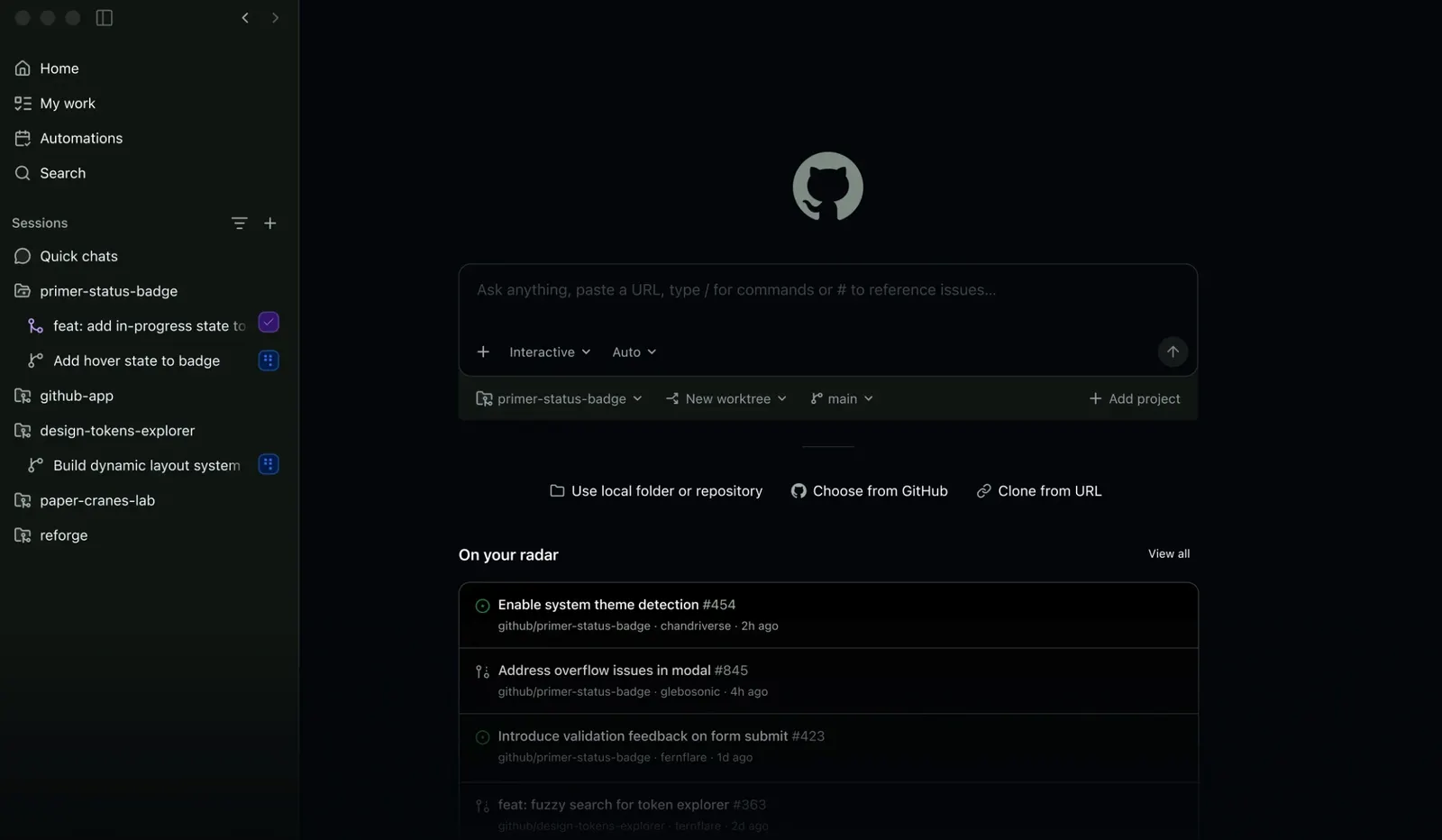
GitHub Copilot is particularly popular in software teams that already use GitHub as part of their development workflow. Its biggest advantage is not simply generating code, but connecting AI assistance with the tools developers already use for repositories, pull requests, issues, code review, and development environments.
In the United States, a common use case is accelerating product development. A developer can describe a feature, ask Copilot to inspect the existing code, implement the required changes, write tests, and review the result.
For startups, this can be useful when a small engineering team needs to move quickly. Developers can delegate repetitive implementation work while spending more time on architecture, product decisions, security, and code review.
Large organizations can also use Copilot at a team level. Business and Enterprise plans provide administrative controls, governance features, pooled AI credits, and organization-level management.
🚀 Main Features of GitHub Copilot
⌨️ Inline Code Suggestions
Inline suggestions are one of the simplest ways to use Copilot. As you type, Copilot predicts the next part of your code and displays suggestions directly inside the editor.
This works particularly well for repetitive programming tasks. You can start writing a function, comment, test, or configuration and allow Copilot to suggest the remaining code.
💬 Copilot Chat
Copilot Chat lets developers ask programming questions directly inside supported environments. You can ask it to explain code, identify potential problems, suggest improvements, generate tests, or help understand an unfamiliar repository.
For beginners, this can make difficult code easier to understand. For experienced developers, it is often more useful as a fast second opinion during debugging or implementation.
⚡ Agent Mode
Agent mode moves beyond simple code generation. Copilot can determine which files need to be changed, propose code modifications and terminal commands, and iterate on the task after reviewing the results.
This makes it suitable for multi-step tasks such as implementing a feature, fixing a bug across several files, updating tests, or refactoring an existing module.
☁️ Copilot Cloud Agent
Cloud agents can work on development tasks in a cloud-based environment. This is useful when you want Copilot to work on a task while keeping your local development environment available for other work.
🔍 Code Review
Copilot can assist with code review by identifying potential problems and suggesting improvements. It is useful as an additional review layer, especially for routine pull requests.
However, AI review should not be treated as a replacement for human review. Security-sensitive changes, database operations, authentication logic, and business-critical code still deserve careful manual inspection.
🧪 Test Generation
Copilot can generate unit tests and help identify edge cases. A practical workflow is to ask Copilot to create tests after implementing a function, then run the tests and adjust them based on the actual behavior of the application.
🔧 GitHub Copilot CLI
Copilot can also be used from the command line. This allows developers to interact with AI assistance without leaving the terminal, which is particularly useful for developers who prefer terminal-based workflows.
🔗 MCP and Third-Party Agents
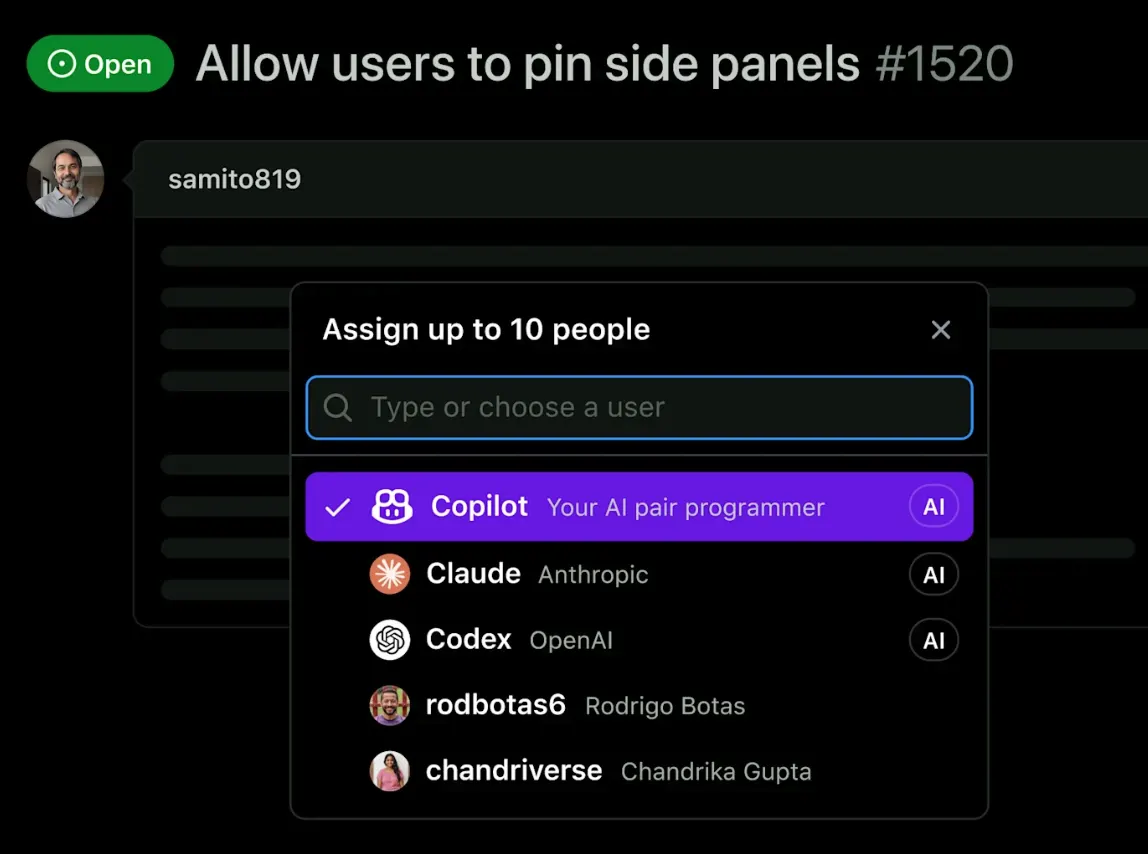
Current Copilot plans also support Model Context Protocol and, depending on the plan and availability, third-party agents. This allows developers to connect Copilot with additional tools and extend its capabilities beyond traditional code completion.
📖 How to Use GitHub Copilot
Start by creating or signing into a GitHub account and choosing a Copilot plan. If you already use a supported IDE, install the GitHub Copilot extension and sign in with your GitHub account.
Once Copilot is active, open an existing project or create a new one. Start with simple tasks such as code completion or asking Copilot to explain a function.
When you become familiar with the workflow, use Copilot Chat or Agent mode for larger tasks. Instead of asking for generic code, give it the project's requirements and explain which existing systems or libraries it should use.
💡 Tips for Getting Better Results
🎯 Describe the actual problem
A vague prompt such as "fix this code" gives Copilot too much freedom. Explain the current behavior, the expected result, and any restrictions.
For example: "The checkout form submits twice when the user clicks the button quickly. Find the cause, fix it without changing the API, and add a regression test."
📋 Give Copilot project context
If you are working inside an existing application, tell Copilot which framework, database, API, coding style, or existing component it should follow. The more relevant context it has, the less likely it is to invent a completely different implementation.
🔧 Break large tasks into stages
Do not immediately ask Copilot to rebuild an entire application. A safer workflow is to ask it to analyze the project, create a plan, implement one part, run tests, review the changes, and then continue.
🧪 Let Copilot write tests
When you add an important feature, ask Copilot to create tests at the same time. This gives you another way to check whether the generated implementation behaves as expected.
🔍 Review every important change
AI-generated code can look convincing while still containing subtle bugs. Always review the diff before merging important changes, especially code involving authentication, payments, permissions, databases, or security.
🛠️ How to Install GitHub Copilot
💻 Visual Studio Code
Install Visual Studio Code, open the Extensions panel, search for GitHub Copilot, install the official extension, and sign in with your GitHub account.
🧩 JetBrains IDEs
GitHub Copilot supports a wide range of JetBrains products, including IntelliJ IDEA, PyCharm, WebStorm, PhpStorm, GoLand, CLion and Android Studio. Install the Copilot plugin from the IDE's plugin marketplace and sign in.
🪟 Visual Studio
GitHub Copilot is also available in Visual Studio. Install or enable the Copilot functionality, sign in with your GitHub account, and then use code completion and chat features directly inside the IDE.
🍎 Xcode
Developers working on Apple platforms can use GitHub Copilot with supported versions of Xcode. This makes AI assistance available directly within an iOS or macOS development workflow.
⌨️ Vim, Neovim and Other Environments
GitHub provides Copilot integrations for several development environments, including Vim and Neovim. The exact installation process depends on the environment and extension being used.
💰 Is GitHub Copilot Free?
Yes. GitHub currently offers Copilot Free for individual users. The Free plan includes up to 2,000 code completions per month and limited AI usage. Verified students can also access the Copilot Student plan at no charge.
| Plan | Price | Main Features |
|---|---|---|
| Copilot Free | $0/month | 2,000 completions per month and limited AI features |
| Copilot Pro | $10/user/month | Unlimited code completion, model selection, agents, code review and additional AI credits |
| Copilot Pro+ | $39/user/month | Premium models, higher AI credit allowance and advanced features |
| Copilot Max | $100/user/month | Highest individual AI credit allowance and priority access to new models and features |
| Copilot Business | $19/user/month | Team management, governance, pooled credits, access controls and business features |
| Copilot Enterprise | $39/user/month | Enterprise administration, higher pooled usage and priority access to new features |
GitHub Copilot now uses GitHub AI Credits for many AI interactions. One AI credit is valued at $0.01 USD, and the amount consumed depends on the model and number of tokens used. Code completion and next-edit suggestions are not charged against AI credits on paid plans.
💳 Which Copilot Plan Should You Choose?
Beginners: Copilot Free is enough to test AI-assisted coding without paying for a subscription.
Regular developers: Copilot Pro is the most practical individual plan for developers who use Copilot throughout their normal working day.
Heavy AI users: Pro+ or Max makes more sense if you regularly use premium models and agent-based development.
Development teams: Business is designed for organizations that need centralized administration, governance and pooled usage.
Large enterprises: Enterprise is intended for organizations that need broader management, security and enterprise-level deployment.
👥 Who Should Use GitHub Copilot?
👨💻 Professional developers: Useful for implementation, debugging, refactoring, documentation and testing.
🎓 Students: Helpful for learning programming concepts and understanding unfamiliar code.
🚀 Startup teams: Useful for accelerating development when engineering resources are limited.
🧑💻 Freelancers: Helpful when switching between different client projects and programming stacks.
🏢 Engineering organizations: Business and Enterprise plans provide administration, governance and organizational controls.
❓ Common GitHub Copilot Problems
Why does Copilot generate incorrect code?
Copilot predicts and generates code based on the context available to it. It does not automatically know every business requirement or hidden dependency in your application. Give it clear requirements and verify the generated result.
Why does Copilot sometimes suggest irrelevant code?
If the current file contains insufficient context, Copilot may misunderstand what you are trying to build. Open the relevant files, provide clear instructions, or use Chat and Agent features that can work with broader project context.
Why does Copilot use AI credits quickly?
AI credit consumption depends on the model and the amount of input and output tokens. Large prompts, complex agent tasks and premium models can consume credits faster than basic code completion.
Can Copilot replace software developers?
No. Copilot can automate many repetitive programming tasks, but developers still need to understand architecture, security, requirements, testing, performance and business logic.
Can AI-generated code contain security problems?
Yes. AI-generated code should be reviewed just like code written by another developer. Pay particular attention to authentication, authorization, database queries, file handling, API keys and user input.
🔐 Security and Privacy
For individual developers, security settings and data policies should be reviewed before using Copilot with sensitive projects. Organizations should also examine the available content exclusion, policy management, governance and privacy controls.
GitHub provides organization-level controls for businesses and enterprises, including access management, policy controls, budget management and data privacy features. Companies should still evaluate Copilot against their own security and compliance requirements before deploying it across an engineering team.
🏆 Is GitHub Copilot Worth It?
GitHub Copilot is most useful when you treat it as a development assistant rather than an automatic programmer. Its strongest advantage is that AI assistance is integrated into the tools developers already use, including IDEs, GitHub repositories, pull requests, code review and terminal workflows.
For someone who only occasionally writes code, the Free plan may be enough. For a professional developer who spends several hours coding every day, Copilot Pro offers a much more practical workflow.
The biggest mistake is accepting every suggestion without checking it. A better approach is to use Copilot for the repetitive work, let it explain and investigate problems, ask it to generate tests, and then use your own engineering judgment to review the final code.
Comments