

🧭 What Is Kiro CLI?
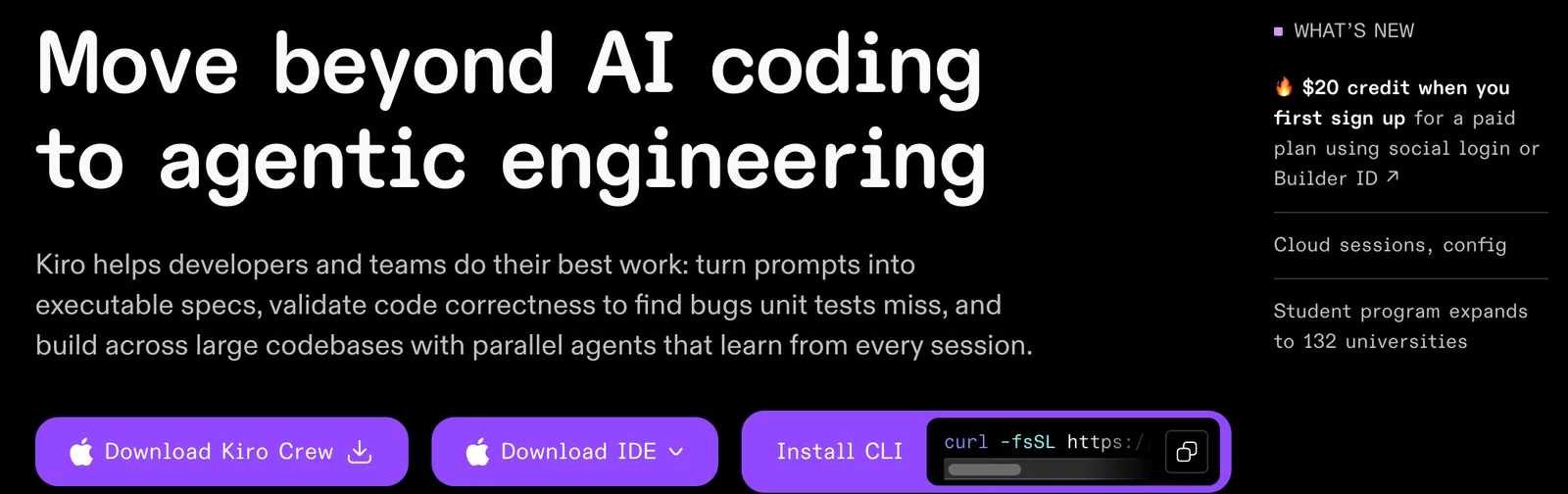
Kiro CLI is an agentic AI coding assistant built for developers who prefer working in the terminal. It is developed by AWS as part of the Kiro developer platform. Kiro CLI officially launched on November 17, 2025, when AWS introduced it as the next evolution of the Amazon Q Developer CLI. It brought Kiro's agent experience directly into the command line while retaining capabilities such as MCP, steering files, and custom agents. :contentReference[oaicite:0]{index=0}
The easiest way to understand Kiro CLI is to think of it as an AI software engineer that lives in your terminal. Instead of only answering coding questions or completing the next few lines of code, it can inspect a project, understand files and dependencies, modify code, run commands, search for information, execute tests, and work through multi-step development tasks.
This makes it particularly useful for developers working over SSH, managing servers, debugging applications, working with Git, building AWS infrastructure, or simply preferring a command-line workflow over a graphical IDE.
Kiro CLI is also connected to the wider Kiro ecosystem. The same Kiro subscription can be used across Kiro IDE, Kiro CLI, Kiro Web, and other supported Kiro surfaces. Cloud sessions can continue running even when the developer is disconnected and can later be accessed from another Kiro interface. :contentReference[oaicite:1]{index=1}
⚙️ Core Features
💬 1. Agentic Coding
Kiro CLI can take a natural-language development request and turn it into a sequence of actions. It can inspect the repository, determine which files matter, make changes, execute commands, run tests, and continue working based on the results.
🧠 2. Project and Codebase Understanding
Rather than treating every prompt as an isolated coding question, Kiro works with the project around it. It can navigate source files and use code-intelligence capabilities to understand symbols, references, diagnostics, and relationships within a codebase.
🔌 3. MCP Support
Kiro CLI supports the Model Context Protocol, allowing developers to connect external tools and services to the agent. This can extend an agent beyond local files and terminal commands to documentation, APIs, databases, and other development resources.
📝 4. Steering Files
Teams can place project-specific instructions in Kiro configuration files. These instructions can describe coding conventions, architecture rules, testing requirements, or other project context that Kiro should follow consistently.
🤖 5. Custom Agents
Developers can create specialized agents for recurring jobs. A team might have one agent for code review, another for testing, another for infrastructure work, and another for documentation.
🔗 6. Agent Hooks
Hooks can automate actions around development workflows. They are useful when you repeatedly need to run checks, format files, validate changes, or trigger another process after an agent completes a task.
☁️ 7. Cloud Sessions
Kiro can run an agent in a managed cloud environment. This is useful for longer tasks because the session can continue after you close your laptop or disconnect from the terminal. The same session can later be accessed through supported Kiro interfaces. :contentReference[oaicite:2]{index=2}
🌐 8. Web Search and Fetch
Kiro CLI added web search and web-fetch capabilities, allowing the agent to retrieve current information from the internet when a development task requires external documentation or technical references. :contentReference[oaicite:3]{index=3}
✨ What Makes Kiro CLI Different?
Kiro CLI's main distinction is its focus on agentic development inside the terminal. It is not primarily an autocomplete tool.
For example, a traditional coding assistant might answer: “Here is how you can add authentication.” Kiro CLI can instead inspect the existing authentication system, determine where the change belongs, modify several files, install or update dependencies if necessary, run tests, investigate failures, and make additional corrections.
That difference becomes much more noticeable when the task is larger than one function or one file. The agent can operate across the repository rather than simply generating isolated code snippets.
Another important advantage is its relationship with AWS. Developers working with AWS infrastructure can use Kiro CLI alongside command-line development and cloud workflows instead of switching constantly between an AI chat window and the terminal.
Kiro also gives experienced developers more control than a simple “type a prompt and get code” product. MCP, custom agents, steering files, hooks, cloud sessions, and configurable tools make it possible to build a workflow around the way a team actually works.
At the same time, this flexibility adds complexity. Kiro CLI makes more sense once you are comfortable with Git, terminals, repositories, permissions, and basic software-development workflows.
💼 Practical Use Cases
💻 Software Development
This is Kiro CLI's primary use case. You can use it to implement features, modify existing applications, create APIs, refactor code, update dependencies, and work across multiple files.
🐛 Debugging
Give Kiro a stack trace, error message, failing test, or description of unexpected behavior. It can investigate the relevant code and help trace the problem instead of merely explaining what the error message means.
🧪 Automated Testing
Kiro can create tests, run existing test suites, investigate failures, and make changes based on test results. This is particularly useful for repetitive test-and-fix cycles.
🔄 Large-Scale Refactoring
Repository-wide changes such as renaming modules, updating APIs, reorganizing components, or migrating dependencies can benefit from an agent that can work across many files.
☁️ AWS Development
AWS developers can use Kiro CLI alongside their existing command-line workflows. This is useful when building applications, investigating cloud resources, troubleshooting deployments, or working with infrastructure.
🛠️ DevOps and SRE
Because Kiro lives in the terminal, it fits naturally into server troubleshooting, shell scripting, log investigation, deployment work, CI/CD automation, and infrastructure maintenance.
🔐 Security Work
Security teams can use an agent to inspect source code, investigate configuration problems, review dependencies, analyze errors, and automate parts of remediation workflows. Sensitive environments should still use carefully restricted permissions.
📚 Technical Documentation
Kiro can inspect an existing repository and help produce README files, API documentation, architecture notes, comments, migration guides, and other technical documentation based on the actual code.
✍️ Writing and Marketing
Kiro can generate and edit text, but this is not its strongest use case. If your main job is writing articles, creating advertisements, preparing social posts, or producing marketing content, a general-purpose AI tool will usually be more convenient.
🚀 How to Use Kiro CLI
1. Install Kiro CLI
Download and install Kiro CLI for your operating system. Current Kiro documentation supports macOS, Windows, and Linux. :contentReference[oaicite:4]{index=4}
Once installed, open a terminal and move into your project:
cd my-project
kiro-cli
2. Sign In
Kiro CLI supports several authentication methods, including Google, GitHub, AWS Builder ID, and AWS IAM Identity Center. This means you do not necessarily need an existing AWS account just to use Kiro as an individual developer.
3. Start With a Real Project
Kiro is more useful when launched from an actual project directory. This gives the agent access to the relevant source files and project context.
4. Describe the Task
Give the agent a concrete objective rather than a vague request.
Investigate why users receive a 500 error
when their authentication session expires.

Do not change the database schema.
First explain the likely root cause.
Then fix the issue, add a regression test,
run the relevant tests, and summarize
all files that were changed.
5. Review Before Large Changes
For complicated tasks, ask Kiro to investigate first. Review its understanding and proposed solution before allowing it to modify a large part of the project.
6. Let the Agent Implement
Once the approach looks correct, allow Kiro to edit the necessary files and execute the commands required to complete the task.
7. Test the Result
Ask Kiro to run the project's tests, build process, linter, type checker, or other validation commands. Then review the actual Git diff yourself.
8. Use Cloud Sessions for Long Tasks
When a task is expected to run for a long time, a cloud session can be more convenient than keeping a local terminal open. Kiro says cloud sessions continue running in the managed environment even when you are disconnected. :contentReference[oaicite:5]{index=5}
🧠 Practical Tips for Better Results
🎯 Be Specific About the Desired Result
Instead of saying “Fix the login”, describe the expected behavior:
When the refresh token expires, return HTTP 401,
clear the invalid session, and redirect the user
to the login page. Do not change the existing
authentication architecture.
🔎 Ask for Investigation Before Modification
For an unfamiliar codebase, this is one of the most useful habits:
Do not modify the project yet.
Inspect the repository and explain:
- where the relevant code is,
- how the current flow works,
- what is causing the problem,
- which files need to change,
- how you would test the fix.
This gives you a chance to catch a wrong assumption before the agent changes multiple files.
📏 Define Acceptance Criteria
Tell Kiro what “finished” means. For example: the API must return 401, existing tests must continue passing, a new regression test must be added, and the build must complete successfully.
🚫 Define Boundaries
Tell Kiro what it should not touch. This is particularly important for production repositories, databases, authentication systems, infrastructure, and legacy modules.
🧩 Use Steering for Repeated Rules
If every project in your organization follows the same naming conventions, testing standards, directory structure, or architectural rules, put those instructions into Kiro's project configuration instead of repeating them in every prompt.
⚖️ Match the Model to the Task
Kiro provides an Auto agent designed to balance quality, latency, and cost, while paid plans also provide access to premium models. For difficult architecture or debugging problems, use a stronger model when appropriate; for routine edits, a less expensive model may be enough. :contentReference[oaicite:6]{index=6}
🔐 Control Permissions
Do not give an AI agent unrestricted access to production systems simply because it can technically use them. Start with a limited environment, review commands before execution when necessary, and keep production credentials isolated.
🖥️ Installation and Supported Platforms
Kiro CLI is primarily a terminal-based development tool. It is not a browser extension or a mobile app that runs the CLI itself.
- macOS: Supported.
- Windows: Supported.
- Linux: Supported.
- Web: Kiro Web provides a separate browser-based interface for cloud development sessions.
- iOS: Kiro has a mobile interface for accessing supported cloud sessions, but this is separate from running Kiro CLI locally.
- Android: Kiro CLI itself is not an Android application.
- Browser extension: No browser extension is required for Kiro CLI.
- IDE: Kiro also provides a dedicated IDE, allowing developers to move between graphical and terminal workflows.
The current Kiro documentation lists macOS, Windows, and Linux as supported Kiro CLI environments. Cloud sessions can also be accessed through Kiro Web, IDE, CLI, and supported mobile experiences. :contentReference[oaicite:7]{index=7}
💰 Kiro CLI Pricing
Kiro CLI does not have a separate subscription price. Its usage is included in Kiro's standard pricing plans, so the same Kiro subscription can be used with Kiro IDE and Kiro CLI. :contentReference[oaicite:8]{index=8}
🆓 Kiro Free — $0/month
The Free plan includes 50 credits per month. It provides access to selected models, including open-weight models and Claude Sonnet 4.5, subject to usage limits. :contentReference[oaicite:9]{index=9}
💼 Kiro Pro — $20/month
Pro includes 1,000 credits per month and access to premium models. Additional credits can be purchased at $0.04 per credit. :contentReference[oaicite:10]{index=10}
⚡ Kiro Pro+ — $40/month
Pro+ provides 2,000 credits per month with access to premium models and the same $0.04 per-credit add-on pricing. :contentReference[oaicite:11]{index=11}
🚀 Kiro Pro Max — $100/month
Pro Max includes 5,000 credits per month and is aimed at developers with heavier agent usage. :contentReference[oaicite:12]{index=12}
🔥 Kiro Power — $200/month
Power provides 10,000 credits per month and is intended for very heavy individual usage. :contentReference[oaicite:13]{index=13}
🏢 Enterprise
Kiro also provides enterprise capabilities including centralized billing, SSO, usage analytics, and enterprise security controls. Enterprise pricing is handled separately rather than being presented as a standard individual subscription. :contentReference[oaicite:14]{index=14}
One detail worth watching is that credits are usage-based. A long agent task can consume substantially more credits than a simple question or small edit. Unused monthly subscription credits do not roll over, while purchased add-on credits have their own expiration rules. :contentReference[oaicite:15]{index=15}
👥 Who Is Kiro CLI For?
👨💻 Programmers
This is the core audience. Kiro CLI is particularly useful for developers who regularly work with repositories, Git, shell commands, testing, and deployment.
☁️ AWS Developers
Developers already working with AWS infrastructure have an obvious use case because Kiro fits naturally into command-line cloud workflows.
🛠️ DevOps and SRE Teams
Terminal-based debugging, deployment troubleshooting, automation, infrastructure inspection, and repetitive operational tasks are natural applications.
🎓 Students
Students can use Kiro to understand unfamiliar code, debug assignments, build small applications, and learn how professional development workflows are structured. Kiro also offers student-specific benefits in supported regions.
🚀 Indie Hackers
A solo developer can use Kiro to handle some of the repetitive work across frontend, backend, testing, documentation, and deployment.
🎨 Designers
Kiro is not primarily a visual-design tool. A designer who occasionally needs help with HTML, CSS, JavaScript, or design-system implementation may find it useful, but it should not replace a dedicated design application.
📣 Marketing Professionals
Kiro can automate technical marketing tasks, website changes, scripts, or data workflows, but it is not designed primarily for campaign planning, copywriting, ad creation, or social-media management.
👤 General Users
If you do not regularly work with code or a terminal, Kiro CLI will probably feel unnecessarily complicated. A general AI assistant is a better match for everyday research, writing, planning, and casual questions.
🌎 Global Usage and Adoption
Kiro does not currently publish a reliable, independently audited country-by-country user count for Kiro CLI specifically. It also does not provide a public download figure that can be confidently presented as the CLI's global download total.
What is documented is that Kiro entered general availability on November 17, 2025, after launching in preview in July 2025. At general availability, AWS described strong adoption of Kiro and introduced the CLI alongside new team and development capabilities. :contentReference[oaicite:16]{index=16}
There are also public adoption figures for Kiro as a broader product, but those should not automatically be treated as Kiro CLI users. This distinction matters because Kiro now includes multiple interfaces, including IDE, CLI, Web, and mobile experiences.
Kiro supports users across a broad international market, and its current pricing documentation lists numerous supported countries and regions, including the United States, Canada, United Kingdom, Germany, Japan, Singapore, South Korea, Australia, India, and many others. Model availability can vary by region because individual model providers have their own geographic restrictions. :contentReference[oaicite:17]{index=17}
For this reason, a precise statement such as “Kiro CLI has X million users” or “the United States accounts for X% of users” would be misleading without a current official source specifically breaking out CLI usage.
👍 Advantages
- Terminal-native workflow: Developers can use an AI agent directly where they already run Git, shell commands, deployments, and server operations.
- Strong agent capabilities: Kiro can inspect repositories, modify multiple files, execute commands, run tests, and iterate.
- AWS integration: It fits naturally into AWS-oriented development and infrastructure workflows.
- Highly configurable: MCP, custom agents, steering files, hooks, and cloud sessions give experienced teams considerable flexibility.
- Shared Kiro ecosystem: The same subscription can be used across Kiro IDE, CLI, Web, and supported workflows. :contentReference[oaicite:18]{index=18}
⚠️ Disadvantages
- Steeper learning curve: Beginners need some familiarity with terminals, Git, project structures, and development tooling.
- Credit consumption: Long-running agent sessions can consume credits considerably faster than simple prompts.
- Requires supervision: An agent that can execute commands can also make mistakes that affect the project or environment.
- Not a general-purpose AI product: It is primarily designed for software development rather than writing, graphic design, marketing, or everyday office work.
⚖️ Kiro CLI vs. Similar AI Coding Tools
| Tool | Primary Interface | Agentic Coding | Model Ecosystem | Pricing Approach | Main Use Case |
|---|---|---|---|---|---|
| Kiro CLI | Terminal | Yes | Kiro-supported models and Auto | Free + credit-based paid plans | Terminal-first development and AWS workflows |
| Claude Code | Terminal | Yes | Claude ecosystem | Subscription/API-based | Terminal-based software engineering |
| Gemini CLI | Terminal | Yes | Gemini ecosystem | Free and paid options | Google-oriented AI coding workflows |
| Codex CLI | Terminal | Yes | OpenAI ecosystem | Plan/API dependent | Agentic coding and terminal workflows |
| Cline | IDE / editor | Yes | Broad provider support | Open-source + model costs | Customizable open-source coding agents |
| GitHub Copilot | IDE / GitHub | Yes | Multiple models | Subscription | GitHub-centered coding assistance |
Kiro CLI is closest in day-to-day workflow to other terminal agents such as Claude Code, Gemini CLI, and Codex CLI. The important differences are not simply model quality; they include how each product handles tools, permissions, cloud execution, model access, project configuration, and the surrounding development ecosystem.
Kiro's combination of CLI + IDE + Web + cloud sessions + steering + MCP + custom agents makes it a broader development environment than a standalone terminal chatbot. Its AWS integration is another meaningful distinction for teams already working in the AWS ecosystem.
For developers who prefer an open-source editor extension, Cline represents a different approach. For developers who want a tightly integrated GitHub workflow, Copilot takes a different route. The choice largely depends on the existing development environment and how much control the developer wants over the agent workflow.
🧪 A Practical Example
Suppose an API suddenly starts returning HTTP 500 errors after a user's session expires.
A weak prompt would be:
Fix the login problem.A more useful Kiro instruction would be:
Investigate why the API returns HTTP 500
when the authentication session expires.

Do not change the database schema.
Do not change the authentication architecture.

First identify the likely root cause.
Then implement the smallest safe fix.
Add a regression test.
Run the relevant tests.
Finally summarize the files changed
and explain why the fix works.
This gives Kiro a clear objective, constraints, validation requirements, and a definition of completion. The agent can then inspect the project, trace the request flow, make the required changes, run tests, and report what it did.
This is the kind of task where Kiro CLI becomes much more useful than a normal chatbot. The agent is not just answering a question; it is operating inside the same environment where the development work is happening.
💵 When Does Kiro CLI Make Sense?
Kiro CLI makes the most sense when the work involves multiple steps and real interaction with a codebase. If you regularly investigate bugs, modify several files, run tests, work with infrastructure, or automate repetitive terminal tasks, the agent model can save meaningful time.
If your typical task is simply “complete this function” or “explain this error,” Kiro's broader capabilities may be more than you need. A lightweight coding assistant can handle those jobs with less setup.
The same applies to non-development work. If your day is mostly writing articles, preparing presentations, creating images, managing social media, or answering customer emails, Kiro CLI is not designed around those workflows.
🎯 Final Assessment
Kiro CLI is a serious terminal-based AI coding agent, not just another command-line chatbot. Its strongest value comes from combining repository understanding, multi-step agent execution, MCP, custom agents, steering files, hooks, cloud sessions, and AWS-oriented development workflows.
It is a good fit for: software developers, backend engineers, DevOps engineers, SREs, AWS developers, infrastructure teams, technical founders, and experienced developers who prefer working from the terminal.
It is particularly useful when: the task requires investigation, coding, testing, debugging, refactoring, automation, or interaction with a real development environment rather than simply generating a piece of code.
It may not be the right tool when: you mainly need AI writing, graphic design, marketing assistance, presentations, casual research, or simple autocomplete.
The best way to evaluate Kiro CLI is to use it on a real task from your own repository. Give it a bug, a small feature, or a repetitive maintenance job. Ask it to explain its approach, make the change, run the tests, and show the resulting diff. That will tell you much more about its practical value than a polished demo.
Comments