⚡ Motion AI: A Practical Guide to AI-Powered Work Management
Most productivity apps are good at storing tasks. Motion takes a different approach: it tries to decide when those tasks should actually happen. By combining an AI calendar, task manager, project management, meeting scheduling, documents, and AI workflows, Motion is designed to turn a list of things you need to do into an actual schedule you can follow.Motion
🔎 What Is Motion AI?
Motion is an AI-powered work management platform built around time, tasks, and projects. It started with a strong focus on intelligent scheduling, but the product has expanded into a broader workspace that combines project management, calendars, meetings, documents, AI chat, and workflow automation.
The key idea is simple: instead of creating a task and then manually finding time for it, you give Motion information such as the deadline, priority, duration, and dependencies. Motion's scheduling engine can then place the work on your calendar and adjust the plan when your day changes.
This makes Motion different from a basic to-do list. A task sitting in a list doesn't tell you when it will actually get done. Motion tries to connect the task with your available time and continuously reorganize the schedule as priorities change.
🧠 What Makes Motion Different?
AI Calendar: Motion automatically schedules tasks around meetings, deadlines, priorities, estimated duration, and available working time. When your schedule changes, it can re-plan the day instead of forcing you to manually move everything.
AI Task Manager: Tasks are not simply stored in a list. Motion uses task information to determine what should receive attention and when the work should be scheduled.
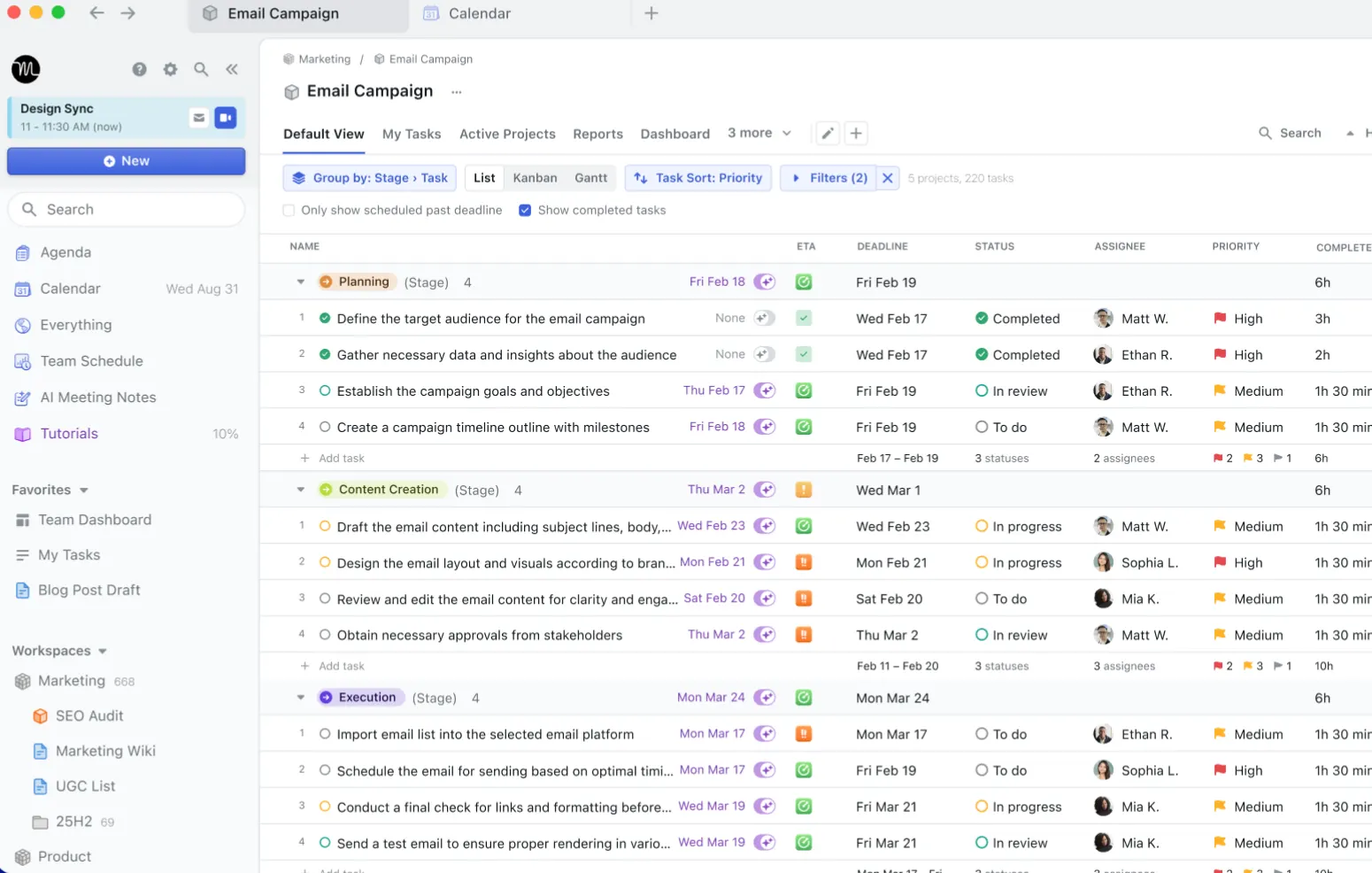
AI Project Manager: Motion can create project structures, assign work, track progress, and identify potential schedule problems. The goal is to reduce the amount of manual project coordination.
AI Workflows: You can describe a repeatable process or provide SOPs and let Motion generate a project structure with tasks, deadlines, assignments, and scheduling.
AI Chat: Motion's AI Chat can work with information inside your workspace, including projects, documents, meetings, calendars, and other work data, rather than operating only as a general-purpose chatbot.
AI Meeting Assistant: Meeting-related features can capture notes and summaries and help turn conversations into follow-up work.
AI Gantt Chart: Project timelines can be visualized while Motion keeps schedules connected to actual project progress instead of treating the original Gantt chart as a fixed plan.
🌎 How Motion Is Used Globally
Motion says more than 1 million top performers and teams trust the platform. Its customer examples include technology companies, agencies, professional services businesses, and other organizations that need to coordinate people, projects, and deadlines.
In the US market, Motion fits particularly well with knowledge workers who have control over their calendars: founders, consultants, sales managers, agency owners, project managers, executives, and remote teams.
The product is less about “making a prettier to-do list” and more about reducing the constant mental work of deciding what to do next. That distinction matters. If your day changes frequently, a static task list quickly becomes outdated; an automatically re-planned calendar can be much more useful.
🚀 How to Use Motion for the First Time
Step 1 — Create your account: Sign up for Motion and start the available free trial. You don't need to install anything before creating your workspace.
Step 2 — Connect your calendar: Connect the work or personal calendars you want Motion to consider when planning your schedule. This prevents Motion from placing work on top of existing commitments.
Step 3 — Set your working hours: Define when you normally work and when you don't want tasks scheduled. This gives Motion a realistic picture of your available capacity.
Step 4 — Add your first tasks: Don't dump hundreds of tasks into the system immediately. Start with the work you actually need to complete this week. Give each important task a deadline, duration, and priority.
Step 5 — Create a project: For larger work, create a project instead of keeping everything as individual tasks. Add dependencies when one task must be completed before another can begin.
Step 6 — Let Motion schedule your work: Once the information is available, allow Motion to place tasks into your calendar. Review the schedule rather than manually rebuilding it.
Step 7 — Test a real change: Move or extend a meeting and see how Motion adjusts the remaining tasks. This is where the product's value becomes obvious.
💡 Practical Tips for Better Results
Be realistic about task duration. If you tell Motion that a sales proposal takes 30 minutes when it normally takes two hours, the resulting schedule will look efficient but won't be realistic.
Use priorities carefully. Don't mark everything as urgent. If every task is high priority, the AI has no useful signal for deciding what should move when your schedule becomes crowded.
Set deadlines that actually matter. A deadline should represent when something needs to be completed, not simply when you would like to work on it.
Use projects for multi-step work. A product launch, marketing campaign, hiring process, or client onboarding process should generally be modeled as a project rather than a long list of unrelated tasks.
Let the system reschedule. One of Motion's biggest benefits is automatic replanning. Constantly overriding its schedule defeats much of the point of using it.
Start with one workflow. Before migrating your entire company, prove that Motion can improve one real process such as client onboarding, sales follow-up, or marketing campaign management.
💻 How to Install Motion
Motion can be used through the web and also provides desktop and mobile applications. The current pricing page lists iOS, Android, and desktop apps as part of the Pro AI offering.
Desktop: Install the Motion desktop application for your operating system, sign in, and connect your calendars and workspace. If you prefer not to install an app, the web version can be used instead.
iPhone and Android: Install the Motion mobile app from the relevant app store, sign in with your Motion account, and allow the permissions needed for calendar and notification features.
The exact installation process can change as Motion updates its apps, so users should use the current download options provided by Motion rather than relying on an old installation guide.
💰 Is Motion Free?
Motion is not a permanently free productivity platform. It currently offers a free trial, after which you can choose a paid plan.
Pro AI: Currently listed at $19 per seat per month on the annual pricing view. It includes AI Chat, AI Projects and Tasks, AI Calendar and Meetings, AI Docs, AI Task Planner, AI Writer and Editor, unlimited storage, apps for iOS, Android and desktop, integrations, and 7,500 credits per seat per month.
Business AI: Currently listed at $29 per seat per month on the annual pricing view. It includes everything in Pro AI plus team capacity planning, advanced dashboards and reports, timeline and Gantt charts, time tracking, permissions and access controls, centralized billing, priority support, and 15,000 credits per seat per month.
Motion also displays different pricing depending on whether you choose monthly or annual billing, with annual billing offering a lower effective monthly price. Always check the current pricing page before purchasing because plan names, limits, and prices can change.
👥 Who Should Use Motion?
Founders and executives: Useful when your calendar is packed but you still need protected time for strategic work.
Sales teams: Helpful for balancing meetings, follow-ups, proposals, prospecting, and customer deadlines.
Agency owners: Useful when multiple clients compete for the same team's limited capacity.
Project managers: Valuable when deadlines, dependencies, and team capacity change frequently.
Remote teams: Useful when managers want visibility into project progress without creating another meeting just to ask for updates.
Individual professionals: A good fit for people who struggle more with planning their time than with remembering their tasks.
⚠️ Common Problems
The schedule feels too full: This usually means the system has been given more work than the available capacity. Motion can expose the problem, but it cannot create extra hours in the day.
Tasks keep moving: Automatic scheduling can feel strange at first. The goal is not to create a schedule that never changes; it is to keep the plan realistic when reality changes.
The calendar is messy: Connect only the calendars that Motion genuinely needs to consider and configure working hours correctly.
Too many tasks are entered: Don't use Motion as a dumping ground for every possible future idea. Separate active commitments from someday tasks.
The team doesn't maintain task information: AI scheduling is only as useful as the data it receives. If deadlines, durations, ownership, or dependencies are wrong, the schedule will also be wrong.
👍 Advantages and 👎 Disadvantages
Advantages: Intelligent scheduling, automatic replanning, integrated calendar and task management, AI-powered project creation, workflow automation, project timelines, meeting tools, AI Chat, and a unified workspace.
Disadvantages: The subscription is more expensive than simple task managers, the system requires accurate task information to work well, automatic scheduling takes some adjustment, and Motion can feel unnecessarily complex for people who only need a basic to-do list.
🏁 Final Verdict
Motion is best understood as an AI operating layer for your working day. Its biggest selling point isn't that it can write text or answer questions. It is that it tries to turn your projects and tasks into a realistic calendar and keep that plan updated as work changes.
If your biggest productivity problem is “I have too much to do and I don't know when I can realistically do it,” Motion is worth testing. If your problem is simply “I need somewhere to keep my shopping list,” Motion is probably overkill.
Free & Pricing
Free plan· Unverified
Payment
Free + paid
Prices and free policies can change. Confirm on the official page before purchasing.


Comments