
What Is Visual Studio Code?
Visual Studio Code, usually called VS Code, is Microsoft's free, cross-platform source-code editor. It was first released in 2015 and has grown from a lightweight editor into a complete development environment covering coding, debugging, Git, terminals, extensions, remote development and AI-assisted programming.
One important point is often missed in AI-tool directories: VS Code itself is not an AI model or chatbot. It is the development environment. Its AI capabilities come through Microsoft's and GitHub's AI features, particularly GitHub Copilot, as well as supported extensions and other agent integrations.
That distinction matters when comparing VS Code with AI-first editors such as Cursor or Windsurf. VS Code is built around giving developers a flexible development environment first, with AI becoming an increasingly important part of that environment.
Core Features
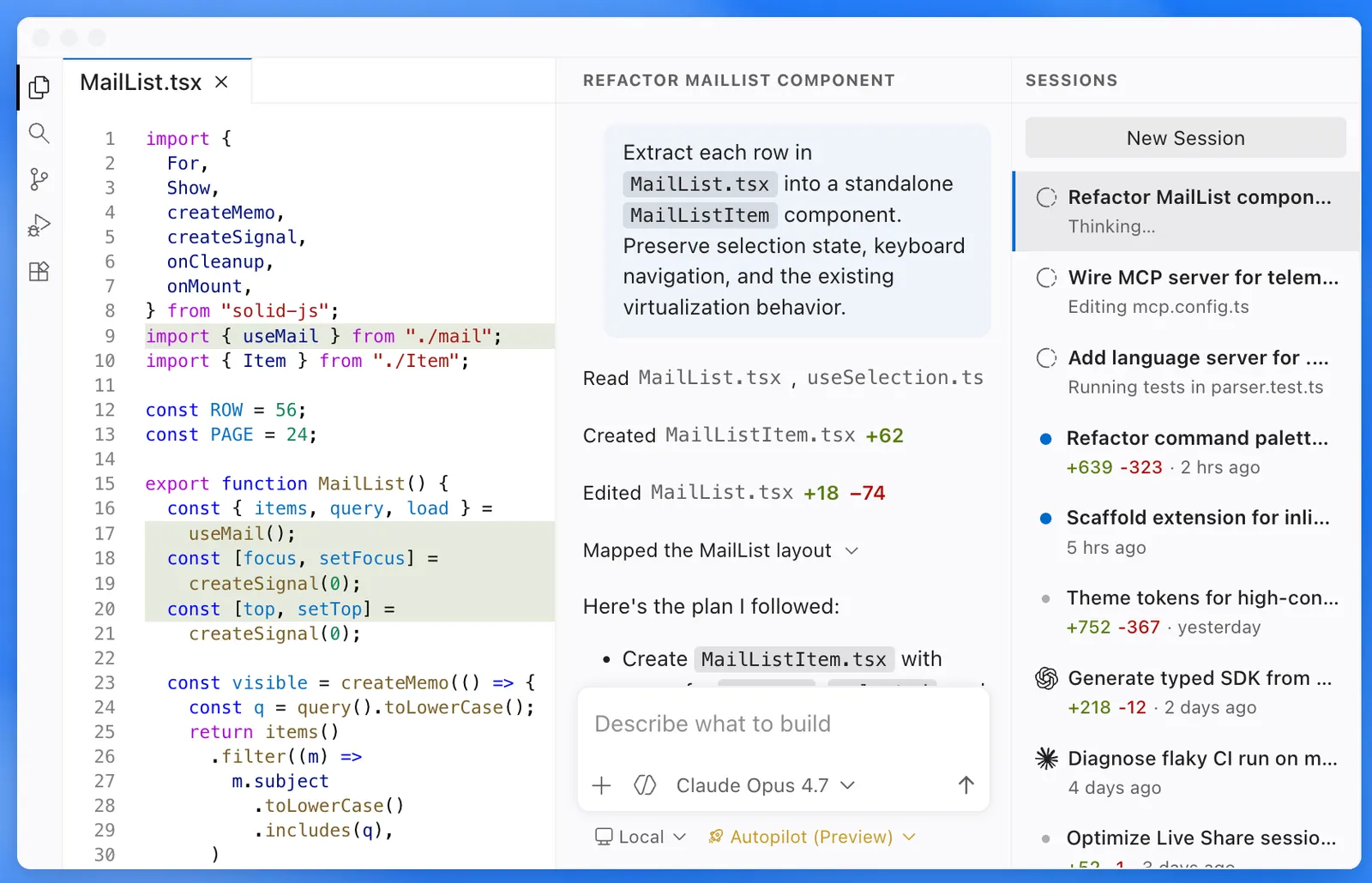
- AI Coding Assistance: With GitHub Copilot, developers can generate code, explain unfamiliar code, suggest fixes and work through programming questions without leaving the editor.
- AI Agent Mode: AI agents can inspect a project, plan changes, edit multiple files, run commands and tests, and iterate on the result. VS Code's current agent workflow is designed for tasks that go beyond simple autocomplete. :contentReference[oaicite:0]{index=0}
- Code Editing: VS Code supports syntax highlighting, IntelliSense, code navigation, refactoring, formatting and other features expected from a modern development environment.
- Extension Ecosystem: Developers can add support for programming languages, frameworks, databases, cloud services, testing tools, AI assistants, themes and productivity workflows.
- Git and GitHub Integration: Source control, branches, commits, diffs and repository workflows can be handled directly from the editor.
- Integrated Terminal: Developers can run npm, pip, Git, Docker, shell scripts, build commands and other development tools without opening another application.
- Debugging: Breakpoints, variables, call stacks, debugging configurations and language-specific debugging extensions make it possible to investigate problems inside the same workspace.
- Multi-Language Development: JavaScript, TypeScript, Python, C++, C#, Java, Go, Rust, PHP and many other languages can be supported through built-in capabilities and extensions.
Main Highlights and Advantages
The strongest reason to use VS Code is not one particular feature. It is the combination of a relatively lightweight editor, a huge extension ecosystem, Git integration, terminal access, debugging and an increasingly capable AI layer.
For developers who do not want their workflow dictated by one vendor or one programming language, this flexibility is useful. A front-end developer, Python developer, DevOps engineer and AI application developer can all start with the same editor and customize it differently.
The AI workflow is also becoming much more practical. VS Code separates different levels of assistance: simple code completion, conversational questions, focused inline edits, planning and multi-step agent execution. This makes it possible to use AI for a quick five-line change or a larger task involving several files. :contentReference[oaicite:1]{index=1}
Another practical advantage is context. Instead of copying code from a browser chatbot into an editor, the AI can work around the project files, terminal and development tools that are already part of the VS Code environment.
Practical Use Cases
- Web Development: Build React, Vue, Angular, Node.js, Next.js and other modern web applications.
- Software Development: Write features, refactor existing code, fix bugs, generate tests and maintain large repositories.
- AI Application Development: Build applications that use LLM APIs, RAG systems, agents, automation workflows and other AI services.
- Python and Data Work: Write Python scripts, process datasets, connect APIs and develop machine-learning applications.
- DevOps: Edit Dockerfiles, YAML configurations, shell scripts, CI/CD workflows and infrastructure code.
- Learning Programming: Students can use the editor and AI assistance to understand syntax, debug errors and explore unfamiliar code.
- Technical Documentation: Markdown, README files, API documentation and documentation-as-code projects are easy to manage.
- Automation: Create scripts for repetitive business, development and data-processing tasks.
VS Code is not primarily designed for graphic design, general marketing or conventional office work. It can handle text-based work, but its real value appears when the project involves programming, automation or technical content.
How to Use VS Code
- Download VS Code: Install the desktop version for Windows, macOS or Linux.
- Open or create a project: Start with an existing repository or create a new project folder.
- Install required extensions: Add language support, frameworks, formatters, debuggers or other development tools.
- Sign in to GitHub: If you want to use GitHub Copilot, sign in with a GitHub account that has access to Copilot. Eligible users can use Copilot Free. :contentReference[oaicite:2]{index=2}
- Open the AI interface: Use Copilot Chat, inline chat or agent features depending on the task.
- Describe the task: Give the AI the goal, technology, constraints and expected result.
- Review the proposed changes: Check the generated code and file changes rather than accepting everything automatically.
- Run and test: Use the integrated terminal, debugger and test framework to verify the result.
- Commit the working version: Once the code is reviewed and tested, commit the changes through Git.
For larger tasks, a useful workflow is to ask the agent to inspect the project and create a plan first. After reviewing the plan, let it implement the change and run tests. Microsoft's current VS Code agent quickstart follows essentially this type of workflow: describe a task, let the agent modify the project, validate the result and then review it yourself. :contentReference[oaicite:3]{index=3}
Practical Tips for Better AI Results
The difference between a useful AI coding session and a frustrating one often comes down to the quality of the task description. You do not need to write a huge prompt, but you should give the model enough context to understand what you actually want.
- Describe the outcome: Say what the feature should do instead of simply asking for code.
- Specify the technology: Mention the framework, programming language, database or API involved.
- Set boundaries: Tell the AI which files it can change and which parts of the project should remain untouched.
- Give existing constraints: Mention authentication, database structure, API conventions, coding standards or performance requirements.
- Plan before implementation: For a large feature, ask for an implementation plan first.
- Ask for tests: When changing important logic, request corresponding unit or integration tests.
- Review the diff: Look at exactly what changed before committing it.
- Break large tasks into stages: A feature implemented and tested in several smaller steps is usually easier to control than one huge prompt.
A practical prompt might look like this: "Add password-reset functionality to the existing Node.js API. Use the current authentication middleware, do not change the database schema, add token expiration, update the relevant tests, and explain which files you changed."
This style works better because it gives the AI a clear objective, technical context and boundaries instead of leaving the implementation open-ended.
Installation and Supported Platforms
Windows: Full desktop application with access to the local filesystem, terminal, extensions and debugging tools.
macOS: Full desktop application for Mac development.
Linux: Desktop versions are available for major Linux environments.
Web: Microsoft also provides browser-based VS Code experiences, although the desktop application remains the more complete environment for local development.
iOS and Android: VS Code is not primarily distributed as a conventional native mobile development environment comparable to the desktop application. Mobile users generally access related development services through browser or remote workflows.
Browser extensions: VS Code itself is not a browser extension. Its ecosystem is based primarily around the desktop editor, web experiences and VS Code extensions.
For serious software development, the desktop version is generally the most useful option because it provides direct access to local files, development runtimes, terminals, debuggers and extensions.
Pricing and AI Costs
VS Code: The editor itself is free to download and use. There is no mandatory subscription simply to use VS Code as a code editor.
GitHub Copilot Free: GitHub currently offers a free Copilot plan with a limited monthly allowance, including up to 2,000 code completions per month. :contentReference[oaicite:4]{index=4}
GitHub Copilot Pro: $10 per user per month, with broader coding and agent capabilities and a monthly AI-credit allowance. :contentReference[oaicite:5]{index=5}
GitHub Copilot Pro+: $39 per user per month, with higher usage allowances and access to premium models. :contentReference[oaicite:6]{index=6}
GitHub Copilot Max: $100 per month for users who need substantially higher AI usage. :contentReference[oaicite:7]{index=7}
Business: GitHub Copilot Business is currently listed at $19 per granted seat per month. Enterprise is listed at $39 per granted seat per month. These plans add organization-focused administration, policies and enterprise capabilities. :contentReference[oaicite:8]{index=8}
There is an important change in how AI costs work: Copilot usage is measured through GitHub AI Credits, and additional usage can be billed after the included allowance is exhausted. The actual cost depends on the model and number of tokens used. :contentReference[oaicite:9]{index=9}
In other words, VS Code can remain completely free while the AI development layer introduces a separate subscription or usage cost.
Who Is VS Code For?
- Professional developers: Especially useful for web, backend, cloud, automation and cross-platform development.
- Students: A practical starting point for learning programming and experimenting with different languages.
- AI developers: Useful for building LLM applications, APIs, agents and AI-powered products.
- DevOps engineers: Well suited to configuration files, scripts, containers and CI/CD workflows.
- Open-source developers: Git and GitHub integration makes repository-based development straightforward.
- Technical writers: Useful for Markdown, README files and documentation projects.
- Non-technical users: Less suitable unless they are learning programming or need to work with scripts and technical files.
Global Usage and Developer Adoption
VS Code has one of the broadest footprints of any modern development environment. In Stack Overflow's 2025 Developer Survey, more than 49,000 responses were collected from 177 countries. The survey reported that Visual Studio Code remained the most-used development environment for the fifth consecutive year. :contentReference[oaicite:10]{index=10}
The survey's Dev IDE question received 26,143 responses, and VS Code remained at the top of the category. This is survey-based evidence rather than an official count of the total worldwide VS Code user base, so it should not be interpreted as the number of active users. :contentReference[oaicite:11]{index=11}
The survey also shows the international nature of the developer community. Among respondents who supplied country information, the United States, Germany, India, the United Kingdom, France and Canada were among the largest represented markets, with substantial participation from countries across Europe, Asia, Latin America and other regions. :contentReference[oaicite:12]{index=12}
There is no single authoritative public figure that accurately represents VS Code's total global active users, monthly visitors or country-by-country downloads. For an AI-tool directory, it is safer to use developer-survey adoption data rather than publish an unsupported user-count estimate.
Advantages and Disadvantages
Advantages
- Flexible: Extensions allow the same editor to support very different programming stacks and workflows.
- Strong AI integration: GitHub Copilot provides everything from basic code completion to more advanced agent workflows.
- Free core product: Developers can build a serious development environment without paying for the editor itself.
- Excellent ecosystem: Git, GitHub, terminal, debugging and extensions fit naturally into the development workflow.
- Cross-platform: Windows, macOS and Linux users can maintain a similar development workflow.
Disadvantages
- Configuration can become complicated: The enormous extension ecosystem can be overwhelming for beginners.
- Advanced AI can cost extra: Heavy Copilot usage can require a paid plan or additional AI credits.
- AI-generated code still requires review: Agent mode can make substantial changes, but the developer remains responsible for correctness and security.
- Not the deepest specialist IDE for every language: Some ecosystems benefit from the more specialized tooling found in dedicated IDEs.
VS Code vs. Other AI Coding Tools
| Tool | Primary Positioning | AI Workflow | Pricing Approach | Typical Use |
|---|---|---|---|---|
| VS Code | Extensible code editor and development environment | Copilot, chat, inline editing and agent workflows | Free editor; AI can be free or paid | Broad software-development workflows |
| Cursor | AI-first code editor | AI is deeply integrated into editing and project work | Subscription-based AI service | Developers who want an AI-first workflow |
| Windsurf | AI-focused development environment | Agent-oriented coding and contextual assistance | Subscription and usage-based AI options | AI-assisted application development |
| JetBrains IDEs | Specialized full IDEs | Integrated AI combined with deep language-specific tooling | Free and paid editions depending on product | Professional development in specific ecosystems |
| Zed | Modern high-performance code editor | AI-assisted editing and collaboration | Free editor with AI-related paid usage options | Developers looking for a newer streamlined editor |
The important difference is positioning rather than simply counting features. VS Code is an extensible development environment that has added increasingly capable AI functionality. AI-first editors put AI at the center of the product experience, while specialized IDEs focus more heavily on deep language- or ecosystem-specific tooling.
For developers who want to keep control over their editor, extensions, Git workflow, terminal and programming stack, VS Code remains a particularly flexible option.
Final Assessment: Is VS Code Worth Using?
Yes, for most people who are serious about software development, VS Code is worth trying. The reason is not simply its AI functionality. Even without Copilot, VS Code is a capable and mature development environment. Adding AI turns it into a much more productive workflow for tasks such as code generation, debugging, refactoring, documentation and multi-file changes.
It is especially worth using if: you are learning programming, building websites or applications, working with GitHub, developing AI products, writing automation scripts, or maintaining software projects.
It may not be the right choice if: you want an editor designed almost entirely around AI, need a highly specialized IDE for a particular enterprise technology stack, or simply need a non-technical application for ordinary office work.
The most practical way to think about VS Code is simple: it is a strong general-purpose development environment first and an AI coding platform increasingly built on top of that foundation. That gives it an advantage in longevity—if your preferred AI model or assistant changes, the editor, extensions, Git workflow and development environment can remain the same.
Comments