

Canva AI: What It Is, Features, Pricing, and How to Use It
🤖 What Is Canva AI?
Canva AI is the artificial intelligence layer built into Canva's visual design platform. Instead of opening a separate AI image generator, writing tool, video editor, and presentation app, you can use AI directly inside the same Canva workflow.
The important change in 2026 is Canva AI 2.0. Canva is moving beyond simple “type a prompt and get an image” features toward a conversational creative workflow. You can start with an idea, brief, rough concept, or unfinished thought and work with Canva AI while building the final design.
For everyday users, this distinction matters. Canva AI is not simply another chatbot or image generator. Its main purpose is to help turn an idea into something that can actually be edited, branded, resized, published, and reused inside Canva.
🌍 How Is Canva AI Used Around the World?
Canva has become one of the most widely used visual communication platforms in the world. Canva said in 2026 that more than a quarter of a billion people use the platform every month, while its earlier Magic Studio launch had already reached users across hundreds of languages and devices.
In the United States, Canva AI is particularly useful for small businesses, marketers, creators, teachers, sales teams, and people who need professional-looking content without spending hours learning Photoshop, Illustrator, or video-editing software.
A small business owner can use Canva AI to create an Instagram campaign, write the promotional copy, generate supporting visuals, resize the campaign for different platforms, and prepare presentation or print materials without moving between several applications.
That is where Canva has a practical advantage: AI is connected to an existing design system rather than operating as an isolated generator.
🚀 What Can Canva AI Do?
💬 Conversational Design
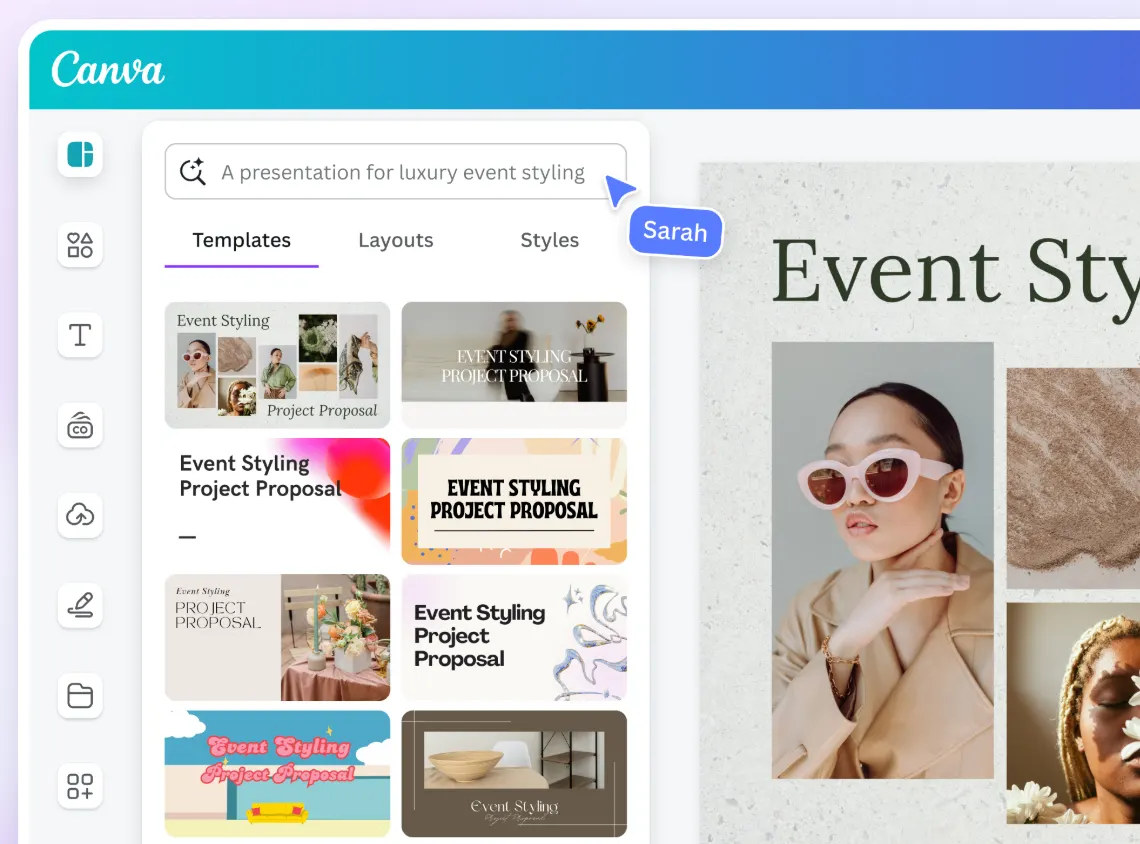
Canva AI 2.0 allows users to interact with Canva through natural-language instructions. Instead of manually starting with a blank canvas, you can describe what you want to create and use the result as a starting point.
You might ask for a social media campaign for a new product, a presentation for a sales meeting, or a promotional flyer for an event. Canva AI can help turn the brief into an editable design.
🎨 AI Design Generation
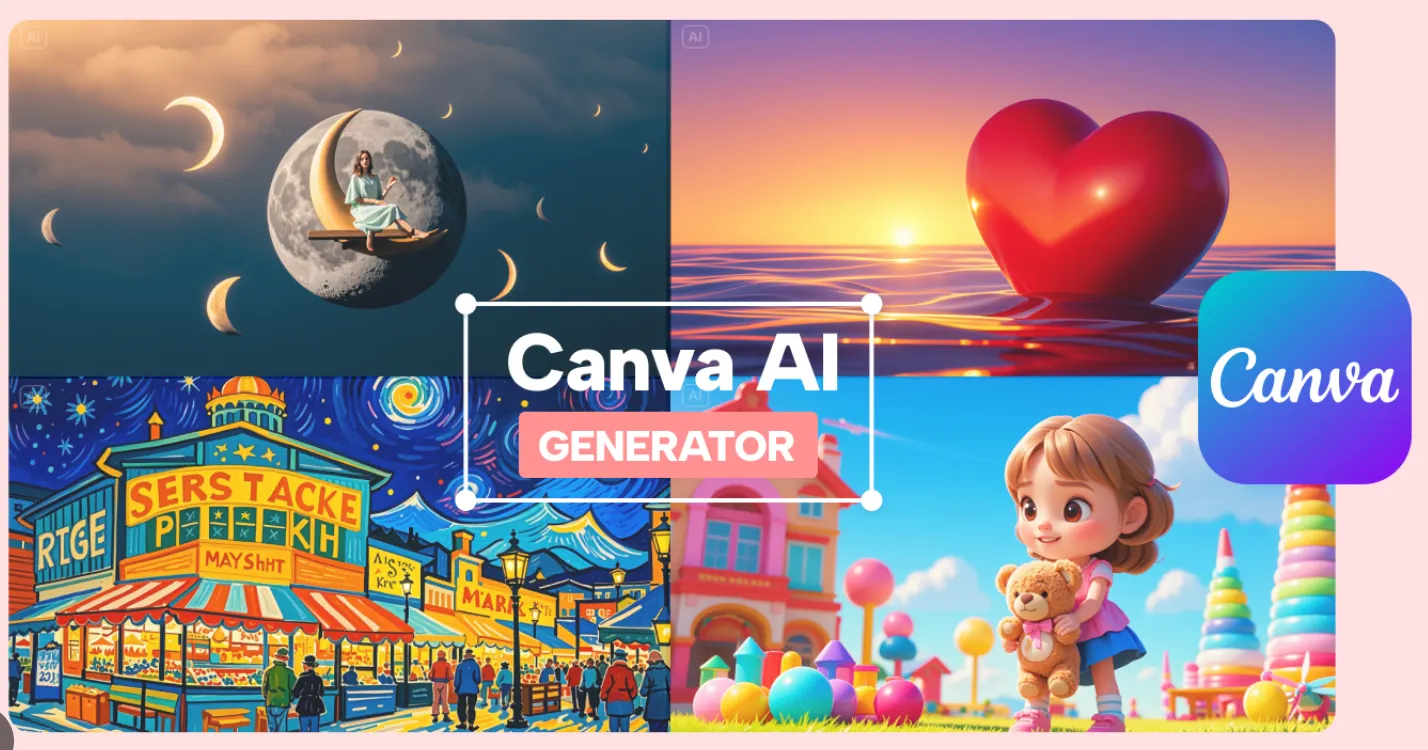
Canva AI can generate designs, images, and other creative assets from prompts. This is useful when you know what you want to communicate but do not know how to build the design from scratch.
For example, instead of searching through hundreds of templates for a product launch, you can describe the product, audience, visual style, colors, and message and use AI to create an initial direction.
🖼️ AI Image Generation and Editing
Canva includes AI-powered image creation and editing features. Depending on the plan and feature, users can generate images, replace objects, remove unwanted elements, expand an image beyond its original frame, or modify parts of a photograph with a text instruction.
Magic Edit can be used to add, replace, or modify parts of an image. Magic Eraser removes unwanted objects, while Magic Grab can separate subjects from an image so they can be moved or resized like editable design elements.
📐 Magic Resize
One of Canva's most useful features for marketers is resizing. A design created for Instagram does not necessarily need to be rebuilt manually for a presentation, poster, or other platform.
Magic Resize can adapt a design to different formats and reorganize its contents. This becomes especially valuable when one campaign needs to produce multiple versions.
✍️ Magic Write
Magic Write is Canva's AI writing assistant. It can help create first drafts, rewrite text, summarize content, expand an idea, or adjust copy for different uses.
It is most useful as a first-draft tool. For important advertising copy, sales messages, or brand communications, you should still review the final wording rather than publishing the first AI-generated version.
🎬 AI Video Tools
Canva AI can also assist with video creation. Users can generate video content, turn images into short video clips, animate designs, synchronize content with music, and create social-ready videos.
This makes Canva particularly attractive to creators and small marketing teams that need both static graphics and short-form video.
🔤 Magic Layers
Magic Layers is one of Canva's newer AI capabilities. It can turn a flat design into an editable layout, allowing users to work with individual text and visual elements instead of treating the entire image as one flat object.
This is important because traditional AI image generation often produces a finished image that is difficult to edit. Canva's approach is moving toward AI-generated work that remains useful inside a design workflow.
🌐 Translation and Localization
Canva can translate designs into more than 100 languages while preserving the overall design. For companies running campaigns across multiple markets, this can significantly reduce repetitive formatting work.
🛠️ How to Use Canva AI
Start by deciding what you actually need to produce. Do not begin with “I want to use AI.” Begin with the business or creative task: a product advertisement, sales presentation, Instagram post, YouTube thumbnail, event flyer, or short video.
Then describe the task in plain language. Include the audience, purpose, visual direction, important text, preferred format, and brand requirements.
For example:
“Create a clean LinkedIn graphic for a B2B software company announcing a new AI product. Use a professional technology style, dark blue and white colors, a clear headline, minimal graphics, and enough empty space for the company logo.”
Once Canva AI creates a first version, treat it as a draft rather than the finished product. Check the wording, spacing, images, brand colors, typography, and call to action before publishing.
💡 Practical Tips for Better Results
🎯 Give Canva AI a clear objective
“Make me a nice graphic” is too vague. Tell Canva what the content is for, who will see it, and what action you want the viewer to take.
📌 Describe the audience
A design for teenagers should not look like a financial services presentation. Include the target audience when it matters.
🎨 Specify the visual direction
Instead of simply asking for a “professional design,” describe the style: minimal, editorial, premium, bold, playful, corporate, modern, or photographic.
🔄 Edit instead of regenerating
If the first result is 80% correct, do not throw it away immediately. Ask Canva AI to change the headline, replace an image, adjust the layout, or modify the colors. This is usually faster than starting over.
🏢 Use Brand Kit for business content
If you are creating content for a company, use your Brand Kit where available. Keeping fonts, colors, logos, and visual rules consistent is more important than generating a new design every time.
📥 How to Install Canva AI
🖥️ Desktop
Canva is primarily a cloud-based platform, so you can use it directly from a web browser. Canva also provides desktop applications for supported operating systems.
📱 Mobile
Canva provides mobile applications, allowing users to create and edit designs from smartphones and tablets. This is particularly useful for social media content that needs to be created and published quickly.
🌐 Web
For most users, the simplest option is to open Canva in a browser, sign in, and use Canva AI directly inside the platform.
💰 Is Canva AI Free?
Yes. Canva has a Free plan, but AI access is limited. Canva's current pricing page lists Free at US$0 per year for one person. The Free plan includes limited AI usage, with the current allowance listed as up to 200 Standard AI uses or up to 20 Premium AI uses, depending on how the tools are used.
| Plan | Current US Price | AI Access | Best For |
|---|---|---|---|
| Free | US$0 | Limited AI usage | Beginners and occasional users |
| Pro | US$180/year | Higher AI allowance | Individual creators and professionals |
| Business | US$250/year per person | Higher AI allowance plus business tools | Businesses and small teams |
| Enterprise | Custom pricing | Higher-level AI and enterprise controls | Large organizations |
Canva currently describes Pro as providing roughly 10 times the AI access of Free, while Business provides roughly 20 times the Free allowance. The actual number of generations depends on the AI tier and the complexity of the task, so these figures should not be treated as a fixed number of images or designs.
Canva also offers AI Pass as an optional add-on for Pro and Business users who need substantially more AI usage.
💳 Is Canva Pro Worth Paying For?
If you only create a few social posts or presentations each month, the Free plan may be enough. Paying for Pro makes more sense when you regularly use premium assets, AI tools, background removal, resizing, Brand Kits, scheduling, or other professional features.
For a small business with multiple people working on marketing, Canva Business is more appropriate than trying to share a single Pro account.
👥 Who Should Use Canva AI?
🎨 Designers: Useful for rapid concepts, layouts, image editing, presentations, and repetitive production work.
📈 Marketers: Useful for campaigns, social media content, advertising graphics, presentations, and localized content.
🏢 Small businesses: A practical way to produce professional marketing materials without maintaining a large design team.
👔 Sales teams: Useful for presentations, sales sheets, product visuals, proposals, and customer-facing materials.
🎓 Teachers and students: Useful for presentations, educational graphics, posters, worksheets, and visual explanations.
📱 Content creators: Useful for thumbnails, social posts, short videos, promotional graphics, and content repurposing.
❓ Common Canva AI Problems
Why can't I access every Canva AI feature?
Canva AI features depend on your plan, region, feature availability, and AI usage allowance. Free users can access some AI functions, but Canva AI 2.0 features such as Memory Library and Connectors require eligible paid plans.
Why does my AI-generated design need editing?
AI should be treated as a production accelerator, not a replacement for review. Generated text, spacing, images, hierarchy, and visual consistency can still need adjustment.
Why did my AI allowance run out quickly?
Canva uses different AI tiers. Premium and Ultra AI operations consume more of the shared allowance than lower-level operations. Your available usage therefore depends on which tools you use.
Can Canva AI replace Photoshop or Illustrator?
Not completely. Canva is optimized for fast visual communication and accessible design workflows. Professional designers working with highly detailed photo manipulation, vector illustration, color management, or complex production files may still need dedicated professional software.
Can I use Canva AI for commercial projects?
Canva is designed for professional and commercial content creation, but you still need to follow Canva's licensing rules and check the rights attached to individual content elements. AI generation does not automatically remove copyright, trademark, or publicity-rights issues.
🏆 Is Canva AI Worth Using?
Canva AI is not the best way to think about Canva. The bigger advantage is the combination of AI and an existing design platform.
You can write copy, generate visuals, edit images, create presentations, produce videos, resize designs, translate content, apply branding, and publish the final result without constantly moving files between different AI services.
For an individual creator, the Free plan is enough to understand the workflow. For someone producing content every week, Canva Pro is more compelling. For businesses with multiple people, brand management, collaboration, and higher AI usage, Canva Business is the more logical option.
The real value of Canva AI is not that it makes designers unnecessary. Its value is that it removes a large amount of repetitive work, allowing one person or a small team to move from an idea to a usable piece of content much faster.
Comments